# Notification Preferences Concepts (/platform/concepts/preferences)
Learn how to manage subscriber preferences in Novu.
Novu provides a way to store subscriber preferences. This allows subscribers, your users, to specify and manage their preferences and customize their notifications experience.
**Levels of preferences:**
* Workflow channel preferences
* Subscriber channel preferences per workflow
* Subscriber global preferences
## Workflow channel preferences
Each workflow has its own channel preferences. By default, all channel preferences are enabled. If disabled, the subscriber will not receive notifications for that channel step.
Steps to manage workflow channel preferences:
1. Go to the [Workflows page](https://dashboard.novu.co/workflows) in Novu dashboard
2. Click the workflow you want to manage channel preferences for
3. A node-based editor will appear. On the right side of the editor, click the `Configure channel preferences` option
4. Click on the All Channels checkbox to enable or disable all channels for the workflow
5. You will be able to change the preferences for only those steps which are present in the workflow. Non existing channel steps will be disabled.
6. The `Mark as critical` toggle will make this workflow critical. Read more about [critical workflows](#critical-workflows)
If a workflow has only `in-app` and `email` steps, then it will have only `in-app` and `email` preferences.

### Critical workflows
In some cases, you don't want the subscriber to be able to unsubscribe from mandatory notifications such as Account Verification, Password Reset, etc...
In those cases, you can mark a workflow as `critical` in the workflow channel preferences. Critical workflows are not displayed in subscriber preferences, so subscribers cannot change preferences for that workflow.
## Subscriber global preferences
Subscribers can set global channel preferences, which override individual settings. For instance, if there are 10 workflows, and a subscriber wants to disable SMS notifications for all of them, they can do so with via global preferences.
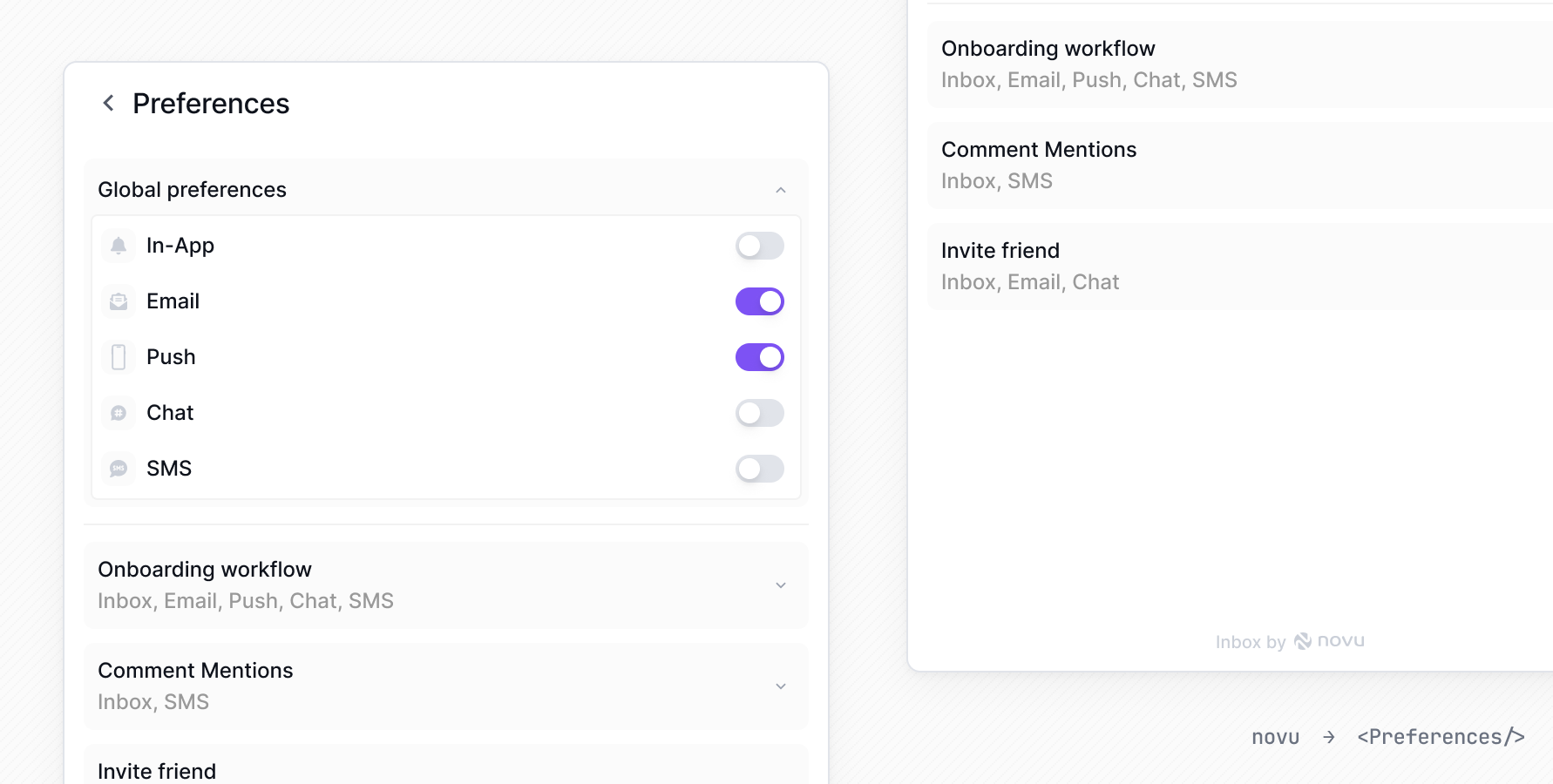
## Subscriber channel preferences per workflow
For each workflow, each subscriber has their own channel preferences. Subscribers can manage these preferences from the {``}{" "} Preferences view.

Inbox displays only channels present in the current workflow.
## Priority of preferences
Since there are three types of preferences, the priority order is as follows:
Workflow channel preferences > Subscriber global preferences > Subscriber channel preferences per workflow
Examples:
1. If the `email` channel is disabled in workflow channel preferences, global and subscriber preferences are ignored, and subscribers will not receive email notifications for this workflow.
2. If the `in-app` channel is enabled in workflow channel preferences but the workflow is marked as critical, subscribers cannot change their preferences and will always receive in-app notifications.
3. If both `chat` and `email` channels are enabled in the workflow but `email` is disabled in subscriber global preferences, the subscriber will receive only chat notifications for this workflow.
## Subscriber preferences APIs
Subscriber preferences can be retrieved and updated using following APIs: