

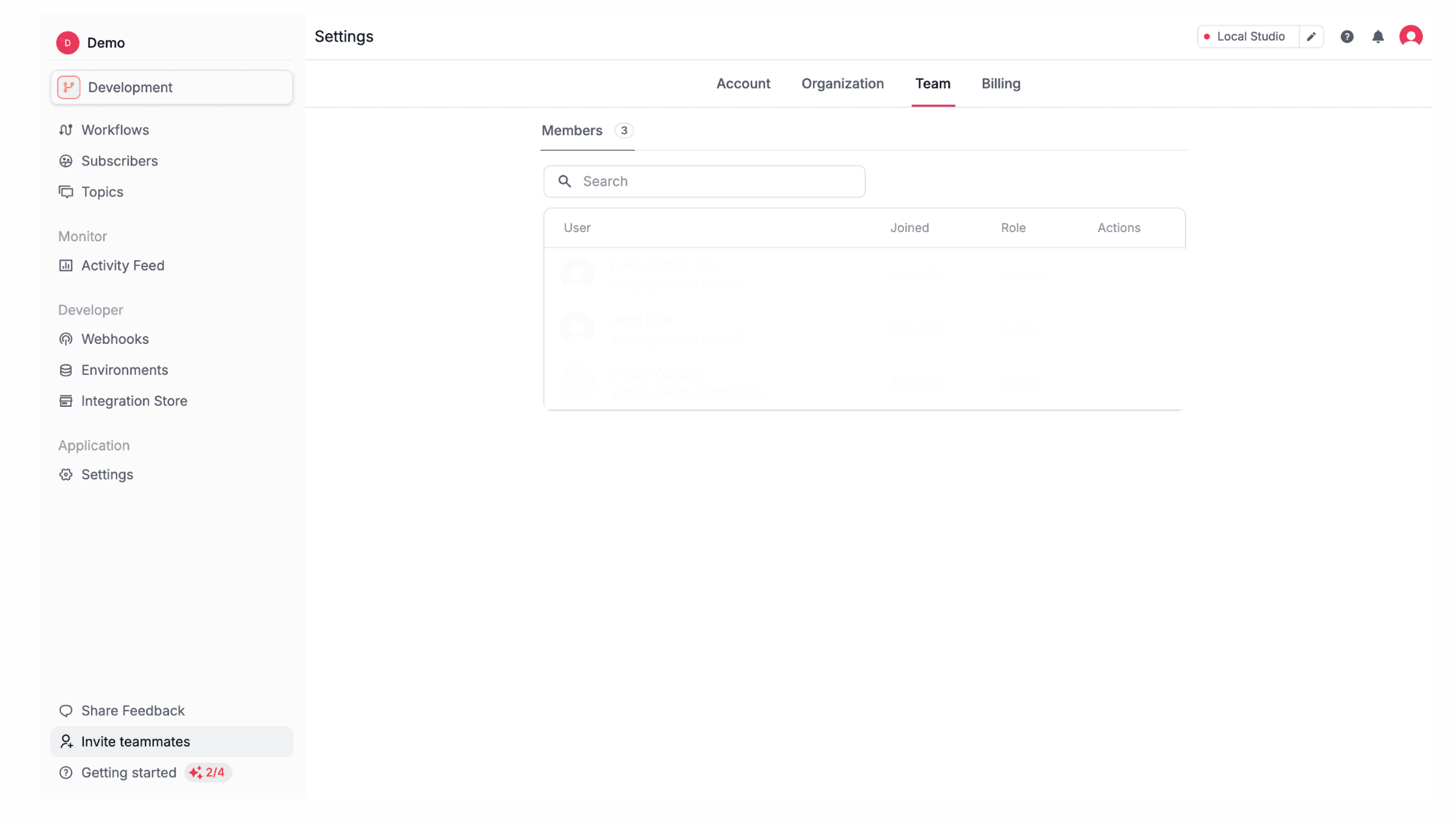
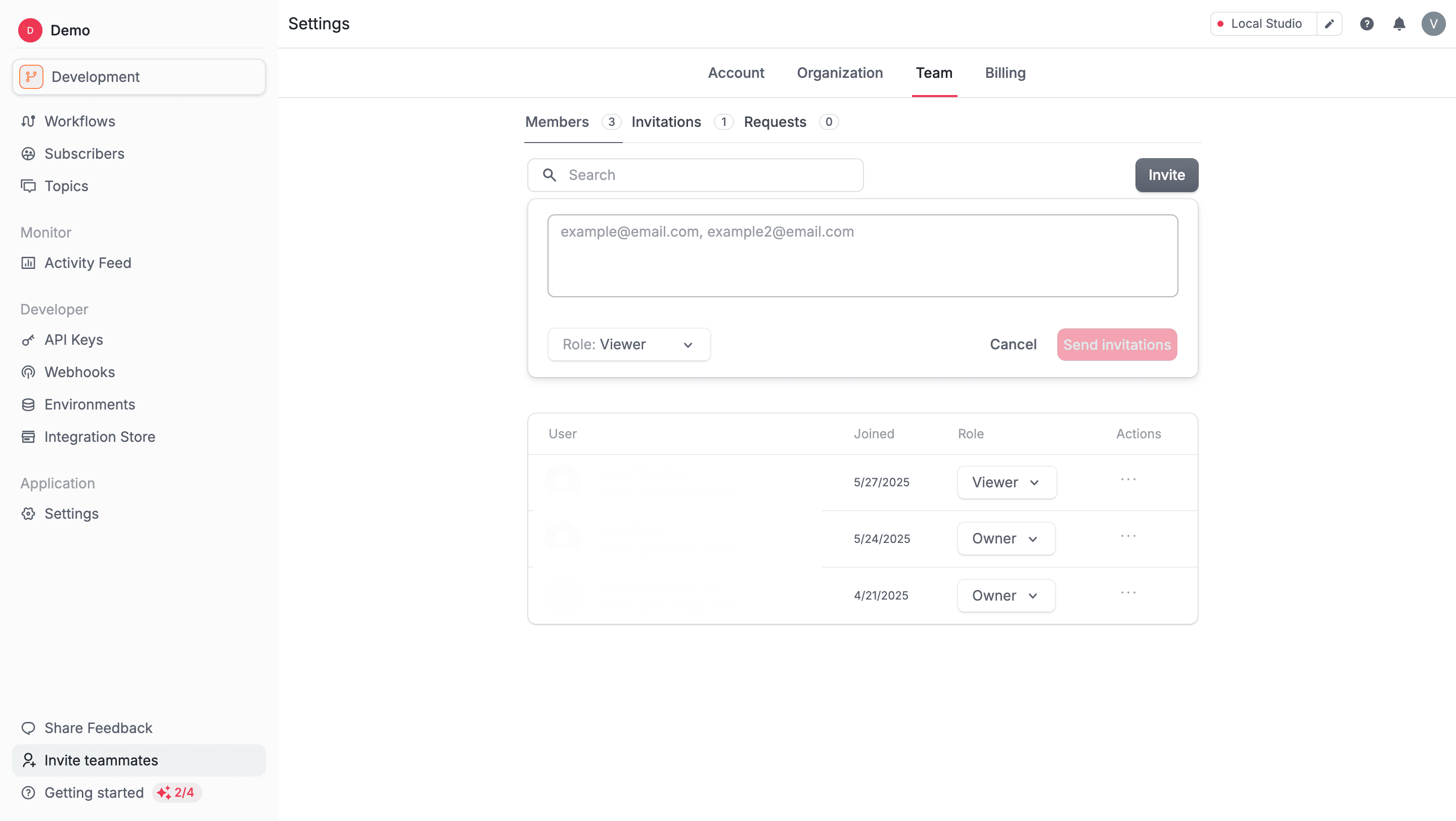
Invite a new member to your organization
1
Open Team settings
In the dashboard, go to Settings > Team
2
Click Invite
You can do this from the Members, Invitations, or Requests tab.
3
Enter email address
Enter the member’s email address into the email field provided.
4
Assign a role (optional)
(Optional) Assign a role to the new member. If no role is selected, then the member is assigned the Viewer role by default.
5
Send invitation
The invited user appears under Invitations until they accept.
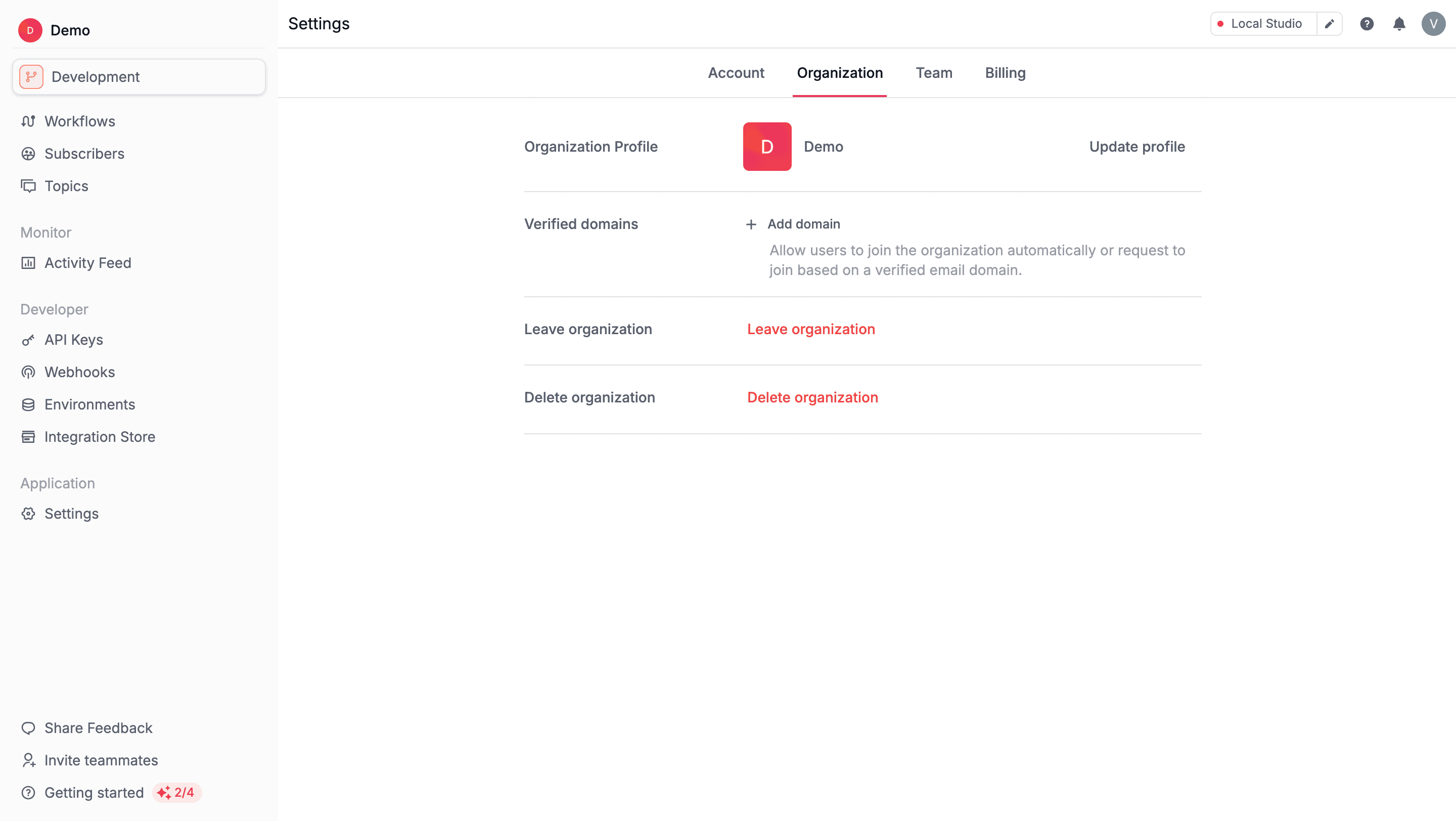
Add a verified domain for automatic or request-based onboarding
You can simplify member onboarding by allowing users with your organization’s email domain to join automatically or request to join your Novu organization.1
Open Organization settings
In the dashboard, go to Settings > Organization
2
Open Verified Domains
Scroll to the Verified Domains section.
3
Add a domain
4
Enter the email domain
5
Save the domain
6
Confirm verification
Confirm the verification process, if prompted.
- Anyone who signs up using a verified domain can either join automatically or send a request to join, depending on your organization’s configuration.
- These users are assigned the Viewer role by default.
Only users with non-public domains (for example, not
gmail.com) can be auto-joined. You must have at least one Owner from the domain before it can be verified.Revoke a pending invitation
You can revoke an invitation if a user hasn’t accepted it yet. Revoking an invite immediately makes the link invalid.1
Open Team settings
In the dashboard, go to Settings > Team.
2
Open Invitations tab
3
Open the actions menu
In the Actions column, click the (⋯) menu next to the user whose invite you want to revoke.
4
Revoke the invitation
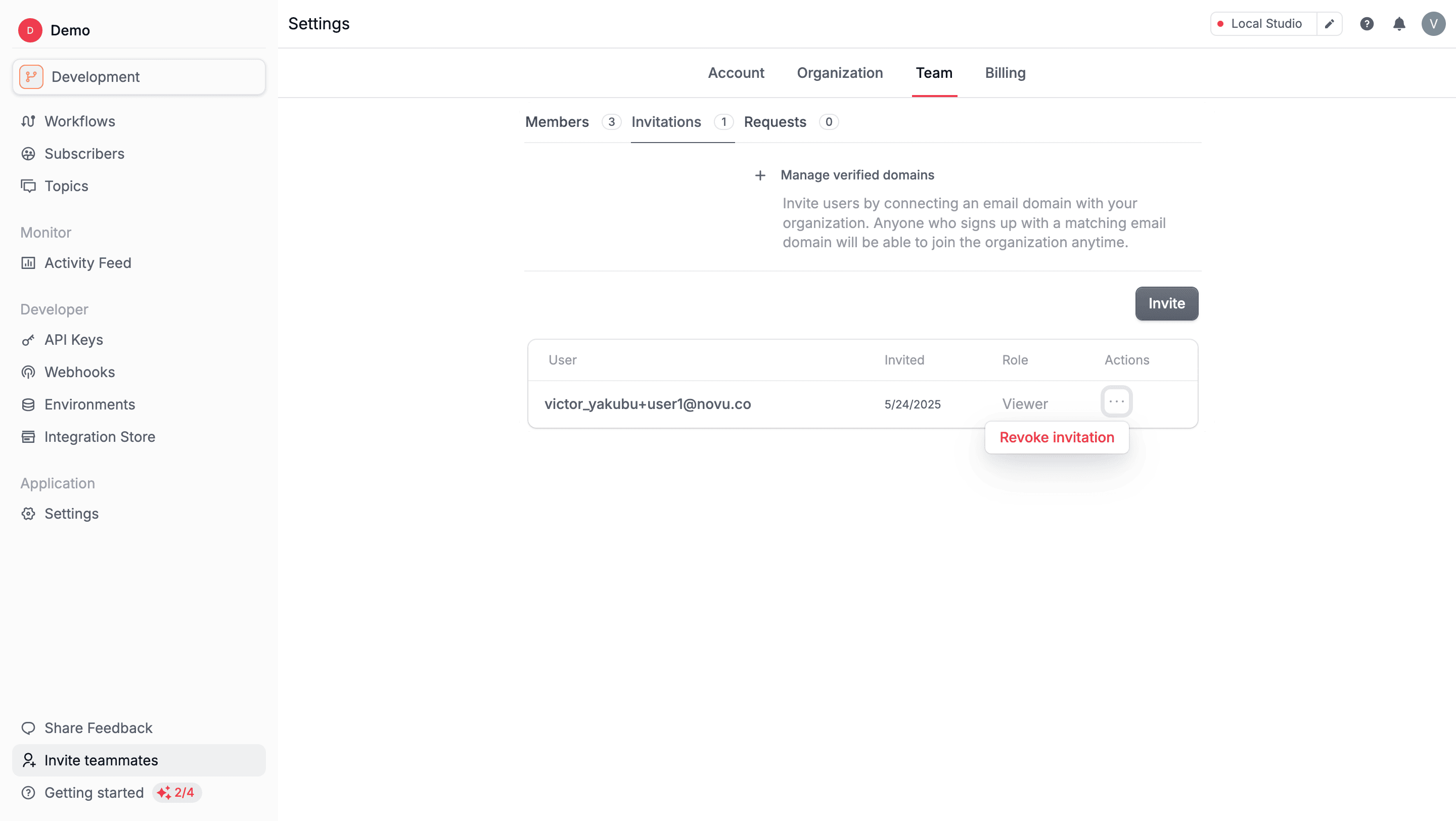
You can still send a new invitation after revoking the previous one.
Manage join requests
Users with a verified email domain can request to join your Novu organization. Only owners can approve or decline these requests.1
Open Team settings
In the dashboard, go to Settings > Team.
2
Open Requests tab
Pending join requests from verified domains appear here.
3
Review join requests
Review the list of users who have requested to join your organization.
4
Open the actions menu
In the Actions column, click the (⋯) menu next to their name.
5
Accept or decline
Approved users are added with the Viewer role by default.
Update a member’s role
You can update a member’s role to control what they can access and manage within your organization. Only Owners can change roles.1
Open Team settings
In the dashboard, go to Settings > Team.
2
Open Members tab
3
Find the member
Find the user whose role you want to change.
4
Open the role list
In the Role column, click the list next to their current role.
5
Select a new role
Choose from the available account roles.
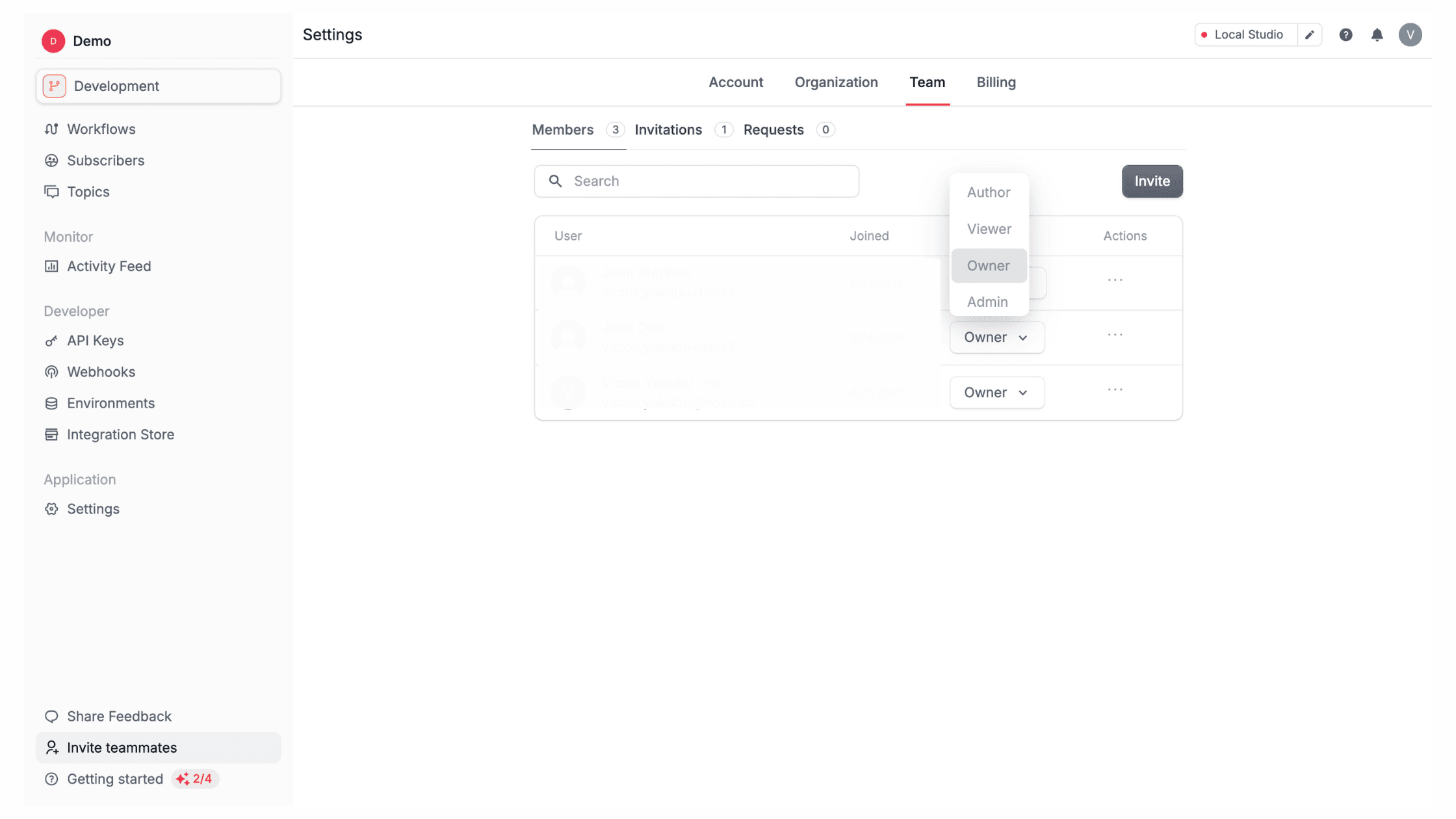
The last owner of an organization cannot have their role changed. Every organization must have an owner.
Remove a member from your organization
You can remove members who no longer need access to your Novu organization. This action immediately revokes their access to your organization dashboard and signs them out. Only owners can perform this action.1
Open Team settings
In the dashboard, go to Settings > Team.
2
Open Members tab
3
Find the member
Use search or scroll the member list to locate them.
4
Open the actions menu
Click the action menu (⋯) next to their name.
5
Remove the member
This immediately revokes their access and signs them out.
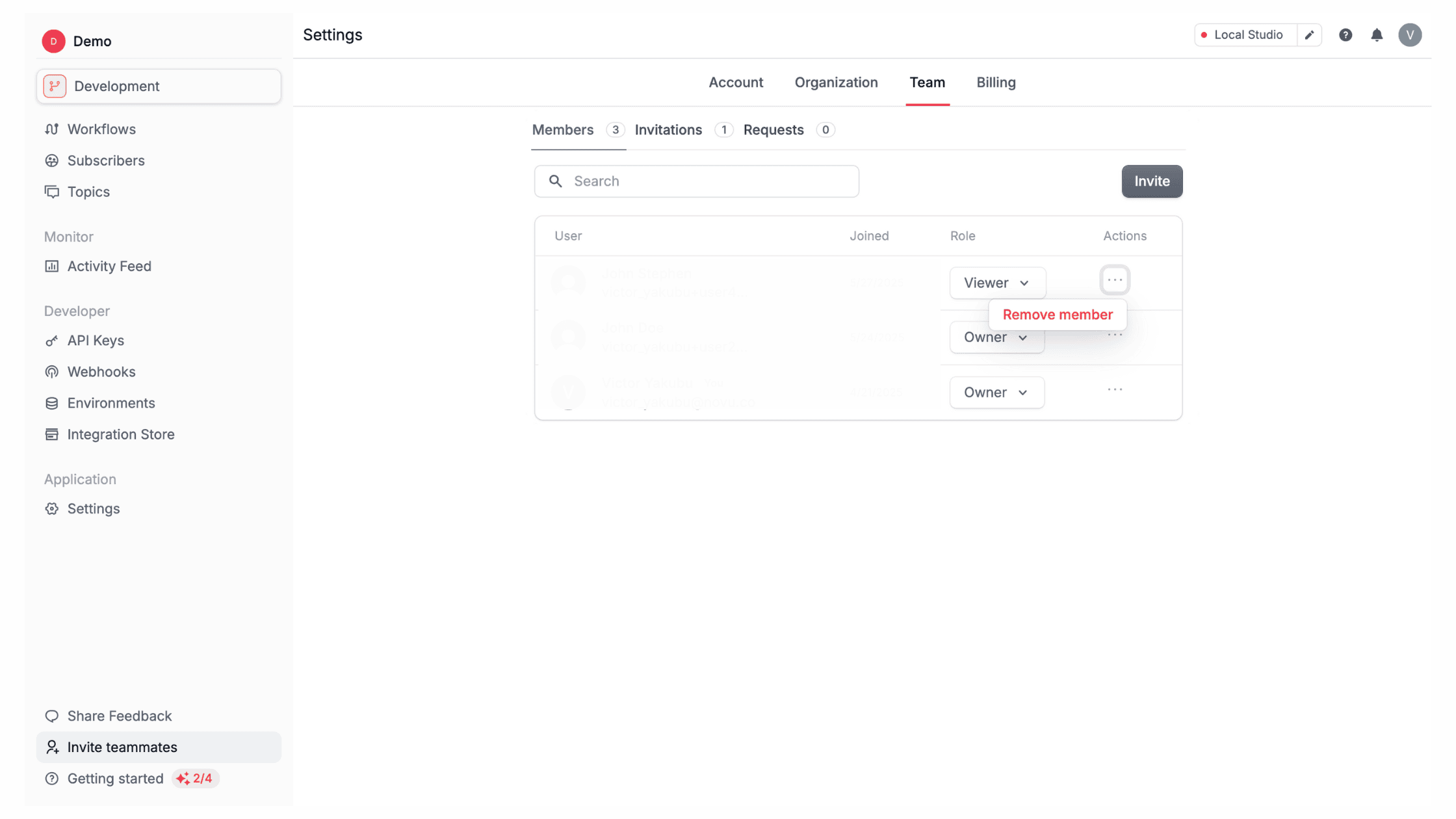
The owner who created the organization cannot be removed. Members can also leave your organization.