

Send notifications
Trigger a workflow to deliver a message to a subscriber’s Slack channel, DM, or webhook.
Format with Block Kit
Send rich Slack messages with sections, buttons, and context blocks from the workflow editor or at trigger time.
Compose rich Chat step content with the block editor, or keep a plain-text / Liquid body. To send Slack Block Kit payloads that go beyond the shared card model, save a Slack content override on the Chat step (rolling out gradually; see Configure Slack overrides in the dashboard), or pass
blocks in trigger overrides when you call the API.Check out the agents documentation for more information on how to build agents using Slack.
Configure a Slack app
Before integrating Slack chat with Novu, you must create and configure a Slack app. The Slack app manages the OAuth permissions, bot token scopes, and redirect URLs needed for Novu to connect to your users’ workspaces securely.Create a Slack app
First, you need to create a Slack app. This provides you with the credential you need to create a Slack integration in Novu.1
Open the Slack API dashboard
Sign in at the Slack API dashboard.
2
Create an app
In Slack, click Create an App to start a new app registration.
3
Select From scratch
Choose From scratch and enter an app name and workspace.
4
Enter app name and workspace
Enter an app name of your choice in the App Name field.
Pick a Slack workspace to develop your app in.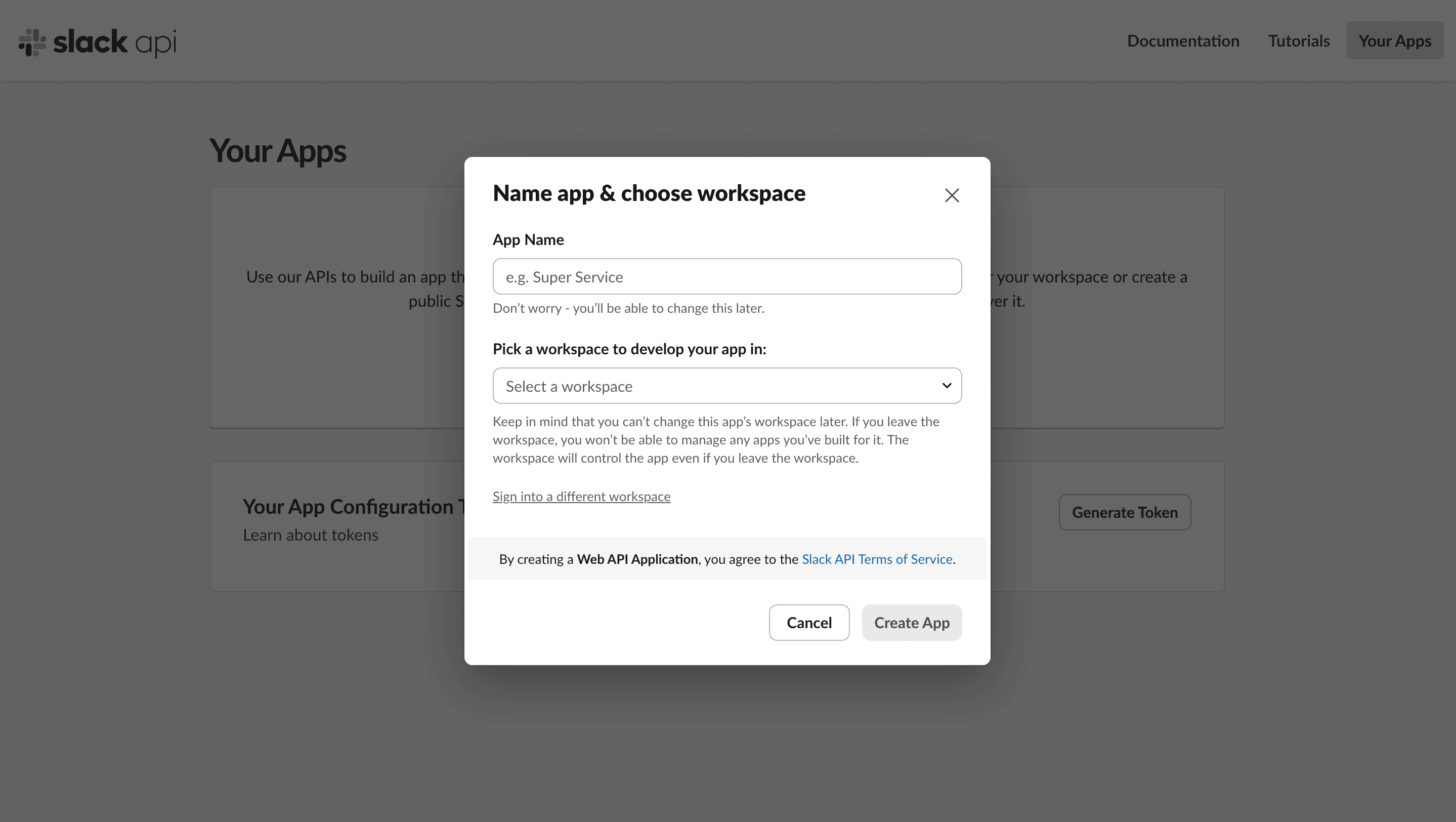
5
Create the app
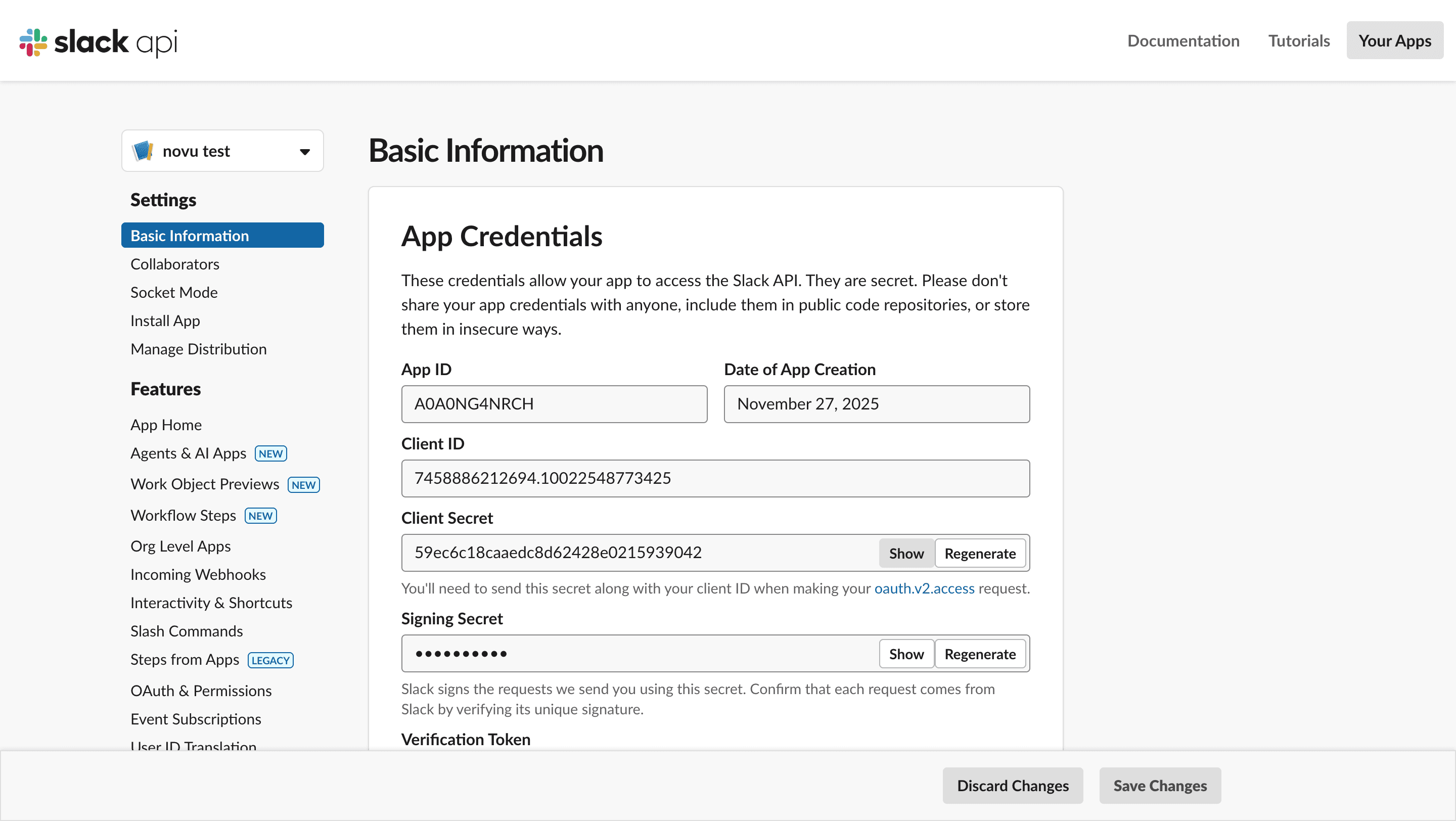
Click Create App. You’ll be directed to the Basic Application for the Slack app which contains the credentials you need for configuring Slack chat inside Novu:
- App ID
- Client ID
- Client Secret
Configure scopes (Permissions)
Your app needs permission to perform actions like sending messages or reading channel lists.1
Open OAuth & Permissions
In the sidebar, select OAuth & Permissions.
2
Open Scopes
Scroll down to the Scopes section.
3
Add an OAuth Scope
Under Bot Token Scopes, click Add an OAuth Scope.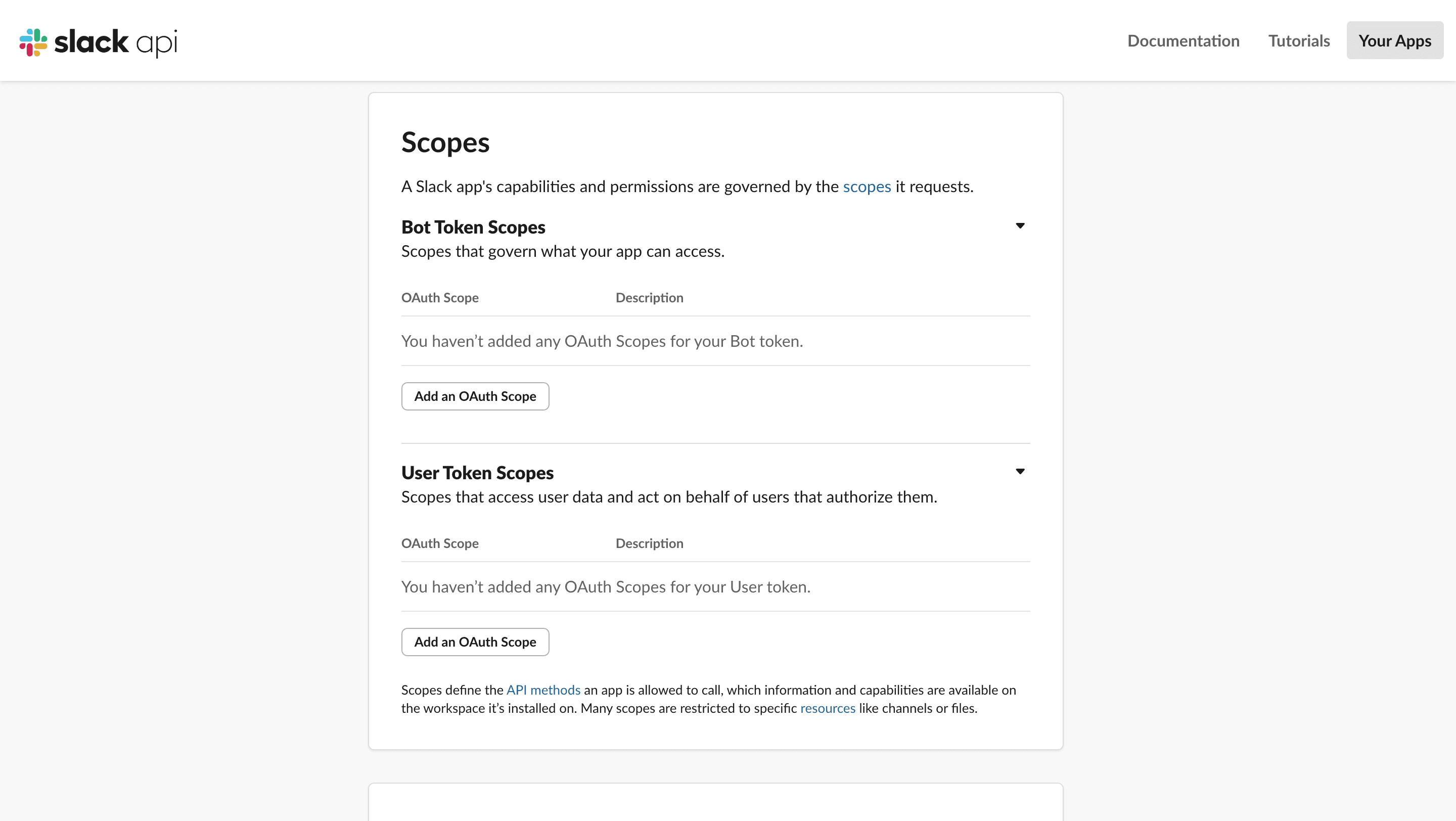
4
Add recommended scopes
chat:writechat:write.publicchannels:readgroups:readusers:readusers:read.email- (optional)
incoming-webhookif you want Slack’s built-in channel picker.
Set the redirect URL
This tells Slack where to send the user after they successfully authorize your app.1
Open OAuth & Permissions
In the sidebar, select OAuth & Permissions.
2
Open Redirect URLs
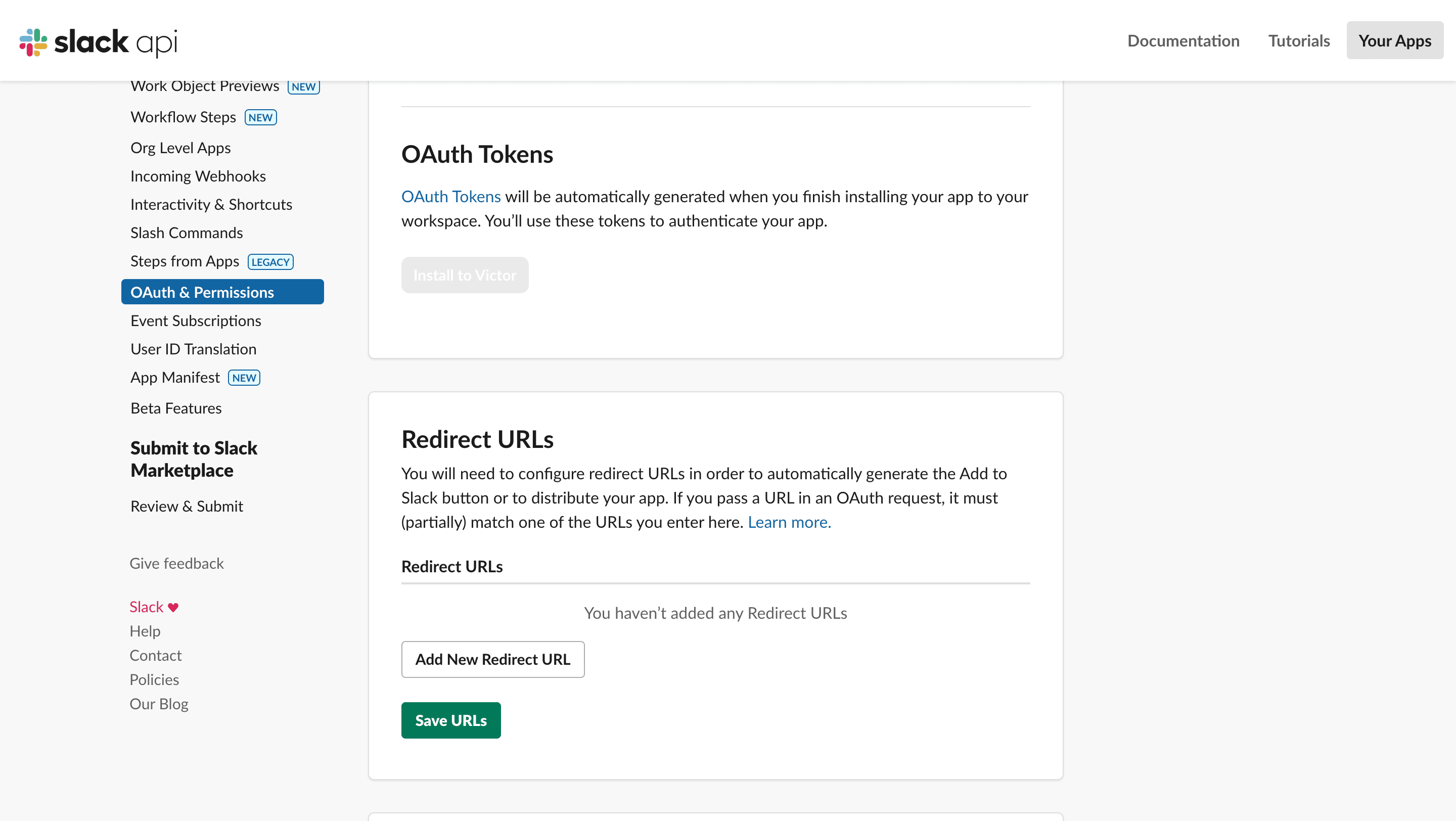
Scroll down to the Redirect URLs section.
3
Add a redirect URL
4
Paste the Novu callback URL
Paste the Novu OAuth callback URL. Add the redirect URL that matches your Novu region:
5
Save the URLs
Configure Slack integration in Novu
Once your Slack app is set up, the next step is to configure the Slack Chat integration inside Novu.1
Log in to the Novu dashboard
Open the Novu Dashboard.
2
Open Integrations Store
In the sidebar, click Integrations Store.
3
Connect a provider
In the Integration Store, click Connect provider to begin setup.
4
Select Slack
5
Fill in credentials
Fill in the required fields using the credentials from your Slack app:
- Application Id: Paste your Slack app App ID.
- Client ID: Paste your Slack App Client ID.
- Client Secret: Paste your Slack App Client Secret.
- Redirect URL (Optional): Enter the URL where you want users to be redirected to after they successfully connect their workspace. If there is no redirect URL, then Novu closes the tab immediately after the OAuth flow completes.
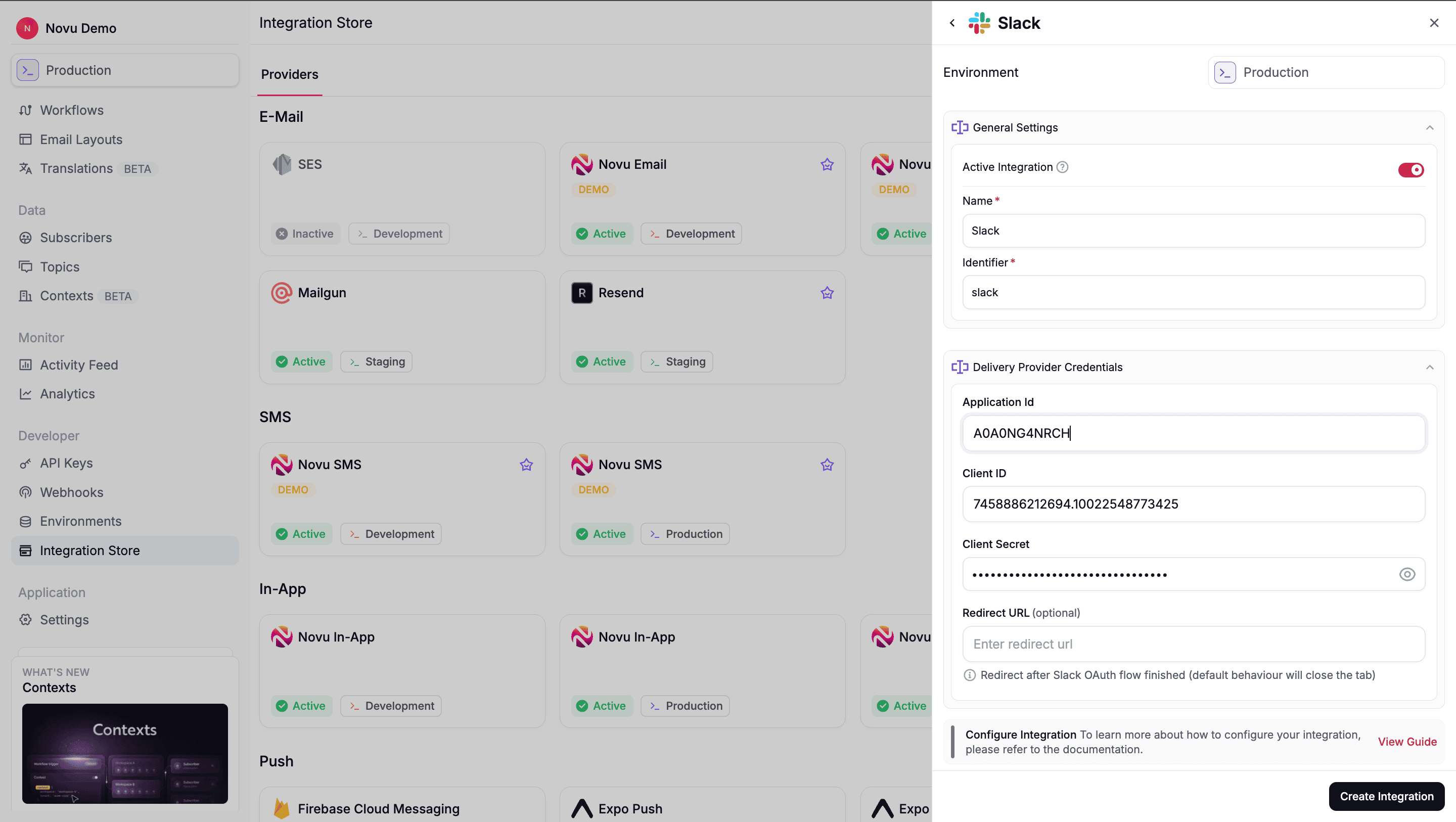
6
Create the integration
Click Create Integration to create the Slack integration. Once saved, Novu is able to:
- Generate OAuth (Connect Slack) URLs for your users
- Receive Slack’s OAuth callback.
- Store workspace tokens as connections.
Let users connect their Slack workspace
To send messages to Slack, your users must first authorize Novu to access one of their Slack workspaces. This authorization happens through Slack’s OAuth flow, which Novu generates and manages for you.Generate the OAuth URL
When a user clicks Connect Slack in your application, your backend should request a unique authorization URL from Novu.- Node.js
- Python
- Go
- PHP
- .NET
- Java
- cURL
Redirect the user
Once your backend returns theoauthUrl, open it in a new tab or window.
1
Review permissions
Reviewing your app’s requested permissions
2
Approve authorization
Approving the authorization
3
Redirect to Novu
Redirecting back to Novu’s callback URL
1
Novu exchanges the code
Novu stores the Slack access token for the connected workspace.
2
Novu creates a connection
Novu creates a Slack connection for that workspace, it is referenced by
connectionIdentifier when creating endpoints.You can also provider a custom connectionIdentifier to the generateChatOAuthUrl() and then connection with such identifier will be created instead of randomly generated one.Alternative: handle OAuth yourself. Instead of If your app uses short-lived tokens, see Token rotation for the additional credentials to register.
generateChatOAuthUrl(), you can run the Slack OAuth flow with your own app, use the access token with Slack’s APIs directly, then register the workspace with Novu via channelConnections.create (or POST /v1/channel-connections):Choose delivery destinations
After a workspace is connected, you or users decide where in Slack to send the messages. This can either be a Slack channel, to a user or an incoming webhook URLs. After the delivery location has been selected, a Slack endpoint is then created for that location.- Slack channel
- Slack user
- Incoming webhook
This is the typical flow for sending notifications to public or private channels.To learn more about using Slack conversations API to either get public or private channels, refer Slack documentation.
1
Get the channel ID
2
Create the endpoint
- Node.js
- Python
- Go
- PHP
- .NET
- Java
- cURL
Send notifications
Once you have at least one Slack connection, and one or more Slack endpoints. You can trigger the workflow:- Node.js
- Python
- Go
- PHP
- .NET
- Java
- cURL
1
Find Slack endpoints
Novu looks up Slack endpoints that match the subscriber ID and context.
2
Use the workspace connection
3
Deliver messages
Novu sends the notification to each configured Slack destination. Block-editor cards are rendered to Slack-native formatting when possible. Text-editor bodies are sent as plain text. To send custom Block Kit, see Format messages with Block Kit.
Format messages with Block Kit
Use a Slack content override when you need Slack-native Block Kit that the shared Chat block editor does not cover. An override is a JSON object whose keys map to Slackchat.postMessage arguments, and Novu merges it into the request it sends to Slack.
You can supply that object from three places:
If you use the text editor and send no override, Slack receives the rendered Chat step body as plain text, which is enough for summaries built from digest variables.
Step overrides and trigger overrides are combined rather than chosen between. See How Slack overrides are combined.
Plain text and digest summaries
For digest workflows built in the dashboard, use digest variables in the Chat step body to build a text summary. For example:Configure Slack overrides in the dashboard
Save a Slack override on the Chat step with no change to your trigger call. A provider-wide override applies whenever any Slack integration sends the step. An override saved on one integration applies only when that integration sends it. The JSON is stored on the step, so it is versioned and promoted with the workflow. See Overrides for one integration.1
Open the Chat step
In the Novu Dashboard, open your workflow and select the Chat step that uses the Slack integration.
2
Open the Slack overrides editor
In the step editor, open the content source dropdown. It reads Default content until you switch it. Under Overrides, pick Slack when Slack has one active integration and no integration-specific override is saved. Otherwise, Slack is grouped: pick All integrations for the payload every Slack integration shares, or pick one integration for a payload only that integration sends. If that row has no override yet, choose Override beside it.
3
Write the override JSON
Enter a JSON object of
chat.postMessage fields. The editor autocompletes the supported field names, including inside blocks[].elements[], validates the JSON, and flags unsupported fields.4
Save the workflow
The override applies on the next trigger.
{{payload.*}} and {{subscriber.*}} resolve the same way they do in the step body:
The step body is the fallback text
text is Slack’s primary content field. If your override does not set text, Novu fills it with the rendered Chat step body.
This matters because Slack uses text as the notification preview in the sidebar, in push notifications, and in any client that cannot render blocks. The example above sets no text, so the step body still travels with the message as that fallback. Write a step body that reads well on its own, and only set text in the override when you want the fallback to differ from the body.
Overridable fields
Everychat.postMessage argument is available:
By default, Novu resolves
channel and token from the subscriber’s Slack endpoint and workspace connection. Novu does not set as_user — Slack deprecated it, and Novu posts as the installed bot.
If you pass channel, token, or as_user in step or trigger overrides (including _passthrough.body), Novu applies them as sent. You own the destination when you set these fields. Prefer addressing a different subscriber or topic when you want a different destination, rather than overriding routing keys.
Send Block Kit with trigger overrides
When the message depends on data only your application has at send time, passblocks in the overrides object when you trigger the workflow instead of saving it on the step. The Chat step body from your template is still sent as the fallback text field unless you override it.
Copy the step identifier from your workflow in the dashboard and use it under overrides.steps.
- Node.js
- Python
- Go
- PHP
- .NET
- Java
- cURL
slack-chat-step with the step identifier from your workflow. Step-level overrides take priority over workflow-level overrides.
Workflow-level overrides
If your workflow has a single Slack Chat step, you can apply Block Kit to all Slack steps in that workflow without targeting a step ID:Send extra Slack fields with _passthrough
Use _passthrough when you need a value to win unconditionally, or to reach a Slack chat.postMessage field Novu has not yet surfaced. Values in _passthrough.body are merged last and take priority over other override fields.
- Node.js
- Python
- Go
- PHP
- .NET
- Java
- cURL
For a full guide on how overrides work, including workflow-level and step-level scopes, see Trigger overrides.
How Slack overrides are combined
When a Slack override exists in more than one place, Novu merges them in this order, lowest priority first:- Provider-wide Slack override saved on the step. This is All integrations when Slack is grouped, or Slack when you have a single Slack integration. It applies to every Slack integration.
- Integration override saved on the step. This is the JSON for the integration that sends the message. Novu merges it on top of the provider-wide override. Other Slack integrations do not receive it.
- Workflow-level trigger overrides.
overrides.providers.slackfrom the trigger call. This applies to every Slack integration that sends. - Step-scoped trigger overrides.
overrides.steps.<step-id>.providers.slackfrom the trigger call. This also applies to every Slack integration that sends.
unfurl_links per trigger.
_passthrough.body sits outside this ordering. Wherever it appears, it is merged last and takes priority over every field above. See Send extra Slack fields with _passthrough.
Block Kit with digest workflows
Trigger overrides are set when you call the trigger API. They work well when each trigger carries the data you need to build the message. For digest workflows, Novu batches multiple triggers into one notification. The Chat step body can use digest variables to summarize batched events, but triggeroverrides are fixed when you call the API and are not re-evaluated against that aggregated data. To build Block Kit dynamically from a digest batch, use Framework provider overrides in a code-first workflow.
Token rotation
Slack token rotation replaces long-lived bot tokens with short-lived access tokens and single-use refresh tokens. Novu stores the credentials returned during OAuth and refreshes the bot token automatically before it expires. Apps created through Novu’s quick setup (App Configuration Token) or the setup guide’s manifest have token rotation enabled by default. Enabling token rotation on a Slack app is irreversible. Apps without token rotation continue to work with their long-lived bot tokens.How token rotation works
When a user connects a workspace, Slack’soauth.v2.access response includes:
access_token: the short-lived bot token used to call Slack APIsrefresh_token: a single-use token used to request the next access tokenexpires_in: the access token lifetime in seconds
Register rotated credentials when handling OAuth yourself
If you handle OAuth yourself and create the channel connection through the API, pass the access token, refresh token, and expiry time:expiresAt, Novu treats the token as expiring and refreshes it on the first send.
Slack refresh tokens are single-use, so only pass a token that has not already been exchanged elsewhere.
Troubleshoot token rotation
If deliveries fail withtoken_revoked or invalid_auth, reconnect the workspace through OAuth. Reconnecting captures a new refresh token and is required when:
- The workspace was connected before token rotation was enabled
- The workspace was connected before Novu supported token rotation
- The refresh token was regenerated in Slack
SlackConnectButton (or the agent’s install control) that created the connection: click the connected control to disconnect, then click again to run OAuth and store a fresh access token and refresh token pair. This applies equally to a workflow subscriber’s connection and to an agent’s own workspace connection — each is reconnected from wherever it was originally installed.
Using Slack with agents
Slack is a supported agent provider. Connect your Slack app to an agent so users can message in channels or DMs and get replies in the same thread, without building Slack event handling yourself.Build agents on Slack
Learn how Novu agents work, including managed and custom code agents.
What you get
When Slack is connected to an agent:- Users message your app in Slack and your agent responds in the same thread
- Conversations appear in the dashboard under Agent Conversations
- Supported content includes text, markdown, files, interactive cards, reactions, and typing indicators
Agent conversations vs. workflow notifications
Both can use the same Slack integration. Your agent handles back-and-forth conversations while workflows send updates such as deploy alerts to the same workspace.
Related
Trigger overrides
Pass Slack
blocks and _passthrough fields when triggering a workflow from your application.Agents and providers
Connect Slack and other providers to an agent.