

Key features
- Multi-provider support: Integrate with providers like Firebase Cloud Messaging (FCM), OneSignal, or Apple Push Notification Service (APNS).
- Unified delivery: Streamline your push notifications with a single API for mobile and web platforms.
- Device management: Keep subscriber device tokens in sync using just-in-time or manual updates.
How push works in Novu
Here is the step-by-step process for sending a push notification with Novu:1
Add a push provider integration
Start by adding a push channel provider integration in the Integration Store on your Novu dashboard. You can connect one or more integrations for the same provider, each with its own credentials and environment configuration.2
Add the Push channel to your workflow
Next, add a Push step to a workflow. This step defines when and how a push message should be sent as part of your notification logic.3
Store device tokens for your subscribers
Each subscriber in Novu must have a valid device token specific to the push provider integration. These tokens are stored in the subscriber’s profile and can be added or updated using the SDK or API. Novu uses these tokens to route messages to the correct device when a workflow runs.4
Trigger the workflow
Trigger the workflow by sending an event from your application code. Novu automatically resolves the subscriber, selects active push provider integrations and their device tokens, and delivers the message through the configured integrations. See Integration conditions.Managing push device tokens
To send push notifications, each subscriber must have one or more device tokens for each push provider integration associated with their profile. These tokens are unique identifiers that help push notification providers deliver messages to the correct devices. Each provider has its own method for obtaining device tokens, refer to your provider’s guide to learn how to generate the device tokens.Each subscriber channel supports a maximum of 100 device tokens. Attempts to create or update credentials beyond this limit will be rejected. Remove unused or stale tokens to stay within the limit. See Platform Limits for all system limits.
The code examples in this section use fcm. For other providers, replace
ChatOrPushProviderEnum.Fcm with the correct enum for your provider, such as ChatOrPushProviderEnum.Apns or ChatOrPushProviderEnum.Expo.Add push device tokens
Novu offers two ways of adding device tokens to a subscriber’s profile:- Just in time - inline with triggering the workflow
- Ahead of trigger - before triggering the workflow
Just in time
You can pass the device tokens in thechannels array of the subscriber field when triggering a workflow. Novu automatically updates the subscriber’s profile with these tokens before sending the message. Here is an example with FCM:
- Node.js
- Python
- Go
- PHP
- .NET
- Java
- cURL
Ahead of trigger
You can add device tokens for a subscriber using the Update provider credentials API before triggering the workflow. This method is useful when you manage device registration outside of your workflow triggers, for example, after a user logs in.The update credentials endpoint sets the
deviceTokens array to the value you send for the target provider (and integrationIdentifier when specified). To preserve existing tokens when registering a new one, first fetch the subscriber, then send the merged list. The same pattern applies to removing a single token, see Remove a specific token.- Node.js
- Python
- Go
- PHP
- .NET
- Java
- cURL
Add device tokens for specific integrations
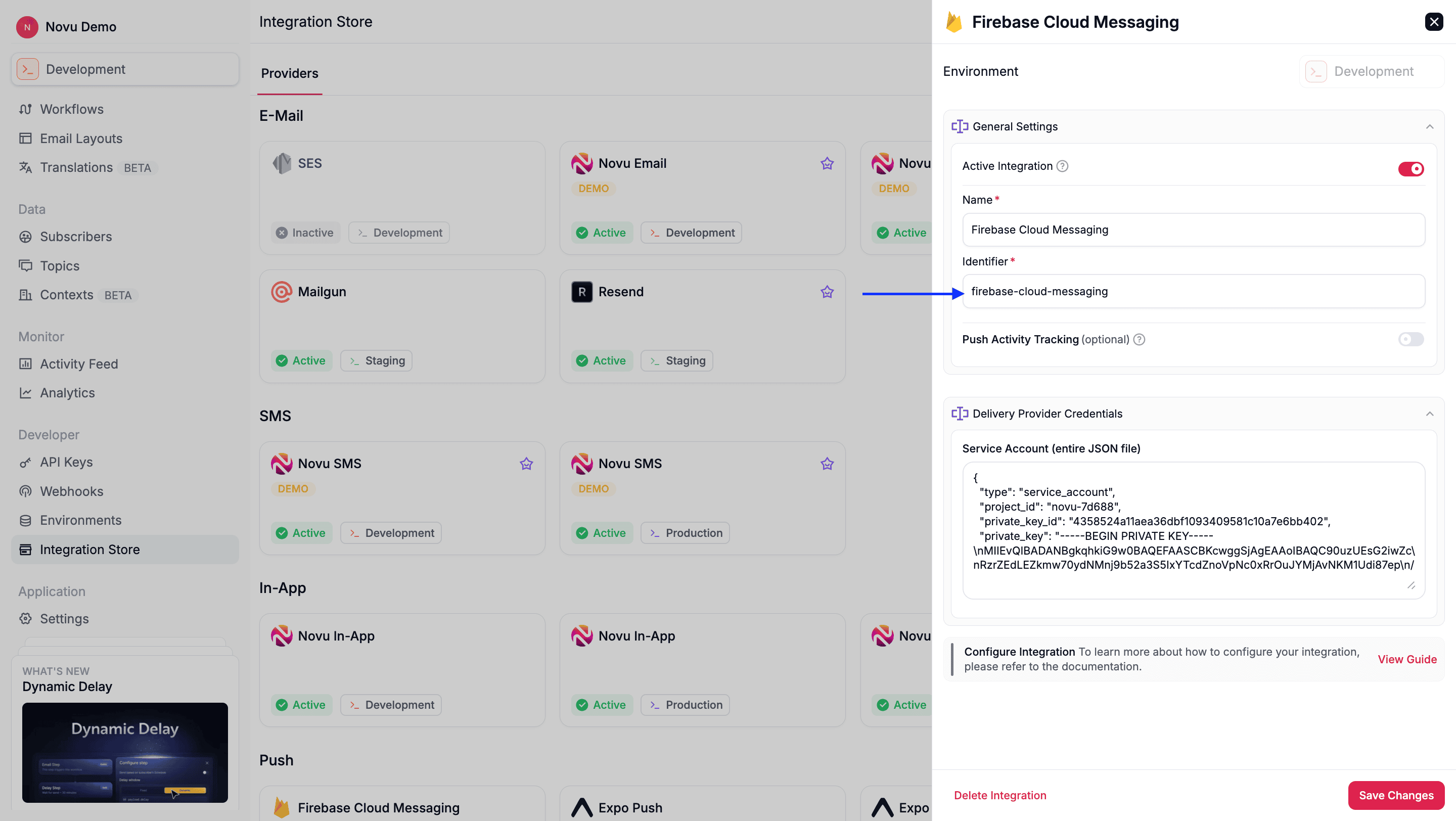
Novu supports multiple active integrations per provider for the push channel. For example, you can have more than one active FCM integration at a time, one for android and one for web app. By default, device tokens are stored for the most recently created integration. To store device tokens for a specific integration, you must use theintegrationIdentifier field. This is the identifier for the integration, which you can find in the Novu dashboard.
- Node.js
- Python
- Go
- PHP
- .NET
- Java
- cURL
Remove device tokens
To remove device token(s) from subscriber credentials, follow this process: When a subscriber logs out of a device, remove that device token from the subscriber’s credentials. This prevents another subscriber who may log in to the same device from receiving notifications meant for the previous subscriber.Handle token removal, such as during a user logout event on the server-side, to prevent stale or invalid tokens from causing failed deliveries.
Automatic removal of stale device tokens
Novu automatically removes invalid, stale or expired device tokens from a subscribers’ profile and then sends the failure details via
message.failed webhook event. This ensures that notifications are only sent to valid and active devices. This feature is currently supported for FCM and Expo providers. If you are looking for other providers to support this feature, reach out to us at [email protected]Remove a specific token
To remove device tokens from subscriber credentials, follow this process:- Fetch the subscriber and read
deviceTokensfrom the matching entry inchannels. - Filter out the token you want to remove.
- Update the subscriber with the new, filtered list.
Device tokens live on
channels[], not a top-level credentials map. When you have multiple active integrations for the same provider, match and update with integrationIdentifier so you do not replace tokens on a different integration. See Add device tokens for specific integrations.- Node.js
- Python
- Go
- PHP
- .NET
- Java
- cURL
Remove all tokens
To remove all device tokens for a provider, or for a specific integration, update the credentials with an empty array.- Node.js
- Python
- Go
- PHP
- .NET
- Java
- cURL
Provider content overrides
The Push step editor covers subject and body. When you need provider-specific fields — sounds, data payloads, platform options, or routing keys — configure a provider content override on the Push step in the workflow editor. An override is a JSON object that Novu deep-merges over the payload the provider builds from the step’s subject and body. It is saved on the step, so it is versioned and promoted between environments with the rest of the workflow, and it applies to every trigger without any change to your trigger call.Provider content overrides in the workflow editor are rolling out gradually and may not be available on your Push step yet. Trigger overrides work regardless.
Expo is schema-backed
Expo overrides are validated against the Expo Push message request format (minusto, which Novu fills from the subscriber’s device tokens). The editor autocompletes supported field names, validates the JSON, and flags unsupported fields.
Configure Expo overrides
Schema-backed Expo override fields, body fallback, and title behavior.
FCM is schema-backed
FCM overrides are validated against the FCM HTTP v1Message shape, plus Novu’s multicast tokens key. The editor autocompletes supported field names, validates the JSON, and flags unsupported fields. Routing keys (token, tokens, topic, condition) are allowed in step content overrides — see Configure FCM overrides for exclusive-or rules, Liquid, fan-out, and trigger precedence.
Configure FCM overrides
Schema-backed FCM override fields,
notification.body fallback, and routing in content or trigger overrides.Every other push provider is a raw passthrough
For APNS, OneSignal, Pushpad, Push Webhook, Pusher Beams, and AppIO, the override is an unvalidated escape hatch. Whatever JSON object you save is merged into that provider’s outbound payload as-is. That means:- No validation. Novu does not check field names, types, or nesting. A typo reaches the provider’s API unchanged. Depending on the provider it either fails the delivery, which you will see in the Activity feed, or is silently ignored.
- No autocomplete. There is no schema to suggest from.
- The shape is the provider’s contract, not Novu’s. Write the object against the provider’s own API reference. If the provider changes its API, your override has to change with it.
- No key blocklist. Provider-specific routing keys in the override are allowed and take effect.
Liquid and precedence
Override values may contain Liquid templates, which Novu compiles at send time. When the same field is set both on the step and at trigger time, the trigger value wins, and arrays replace rather than merge. Precedence from lowest to highest: persisted dashboard override, then trigger workflow-leveloverrides.providers, then trigger step-level. See provider override scopes.
_passthrough.body sits outside this ordering. Wherever it appears, it is merged last and takes priority over every layer above — including provider routing keys such as FCM’s topic. See routing with _passthrough.
Supported providers
Novu supports the following providers:Firebase Cloud Messaging (FCM)
Learn how to use the FCM provider to send push notifications using Novu.
Expo Push
Learn how to use the Expo Push provider to send push notifications using Novu.
Apple Push Notification Service (APNS)
Learn how to use the APNS provider to send push notifications using Novu.
OneSignal
Learn how to use the OneSignal provider to send push notifications using Novu.
Push Webhook
Learn how to use the Push Webhook provider to send push notifications using Novu.
Pusher Beams
Learn how to use the Pusher Beams provider to send push notifications using Novu.
Pushpad
Learn how to use the Pushpad provider to send push notifications using Novu.