

Configure Onesignal with Novu
Before you can send push notifications via OneSignal from Novu, you need to connect your OneSignal credentials.Step 1: Get your OneSignal credentials
To configure the OneSignal integration, you need an active account that has credentials for APNS, FCM, or both, and have access to two values from OneSignal app’s settings:- App ID
- App API Key
App ID and App API key.
Step 2: Connect Onesignal to Novu
Next, add these keys to your OneSignal integration in the Novu dashboard.1
Log in to the Novu dashboard
Open the Novu Dashboard.
2
Open Integration Store
On the Novu dashboard, navigate to the Integration Store.
3
Connect a provider
In the Integration Store, click Connect provider to begin setup.
4
Select Push tab
5
Select OneSignal
In the Push tab, choose OneSignal from the provider list.
6
Paste credentials
In the OneSignal integration form, paste your App ID and App API Key into the corresponding fields.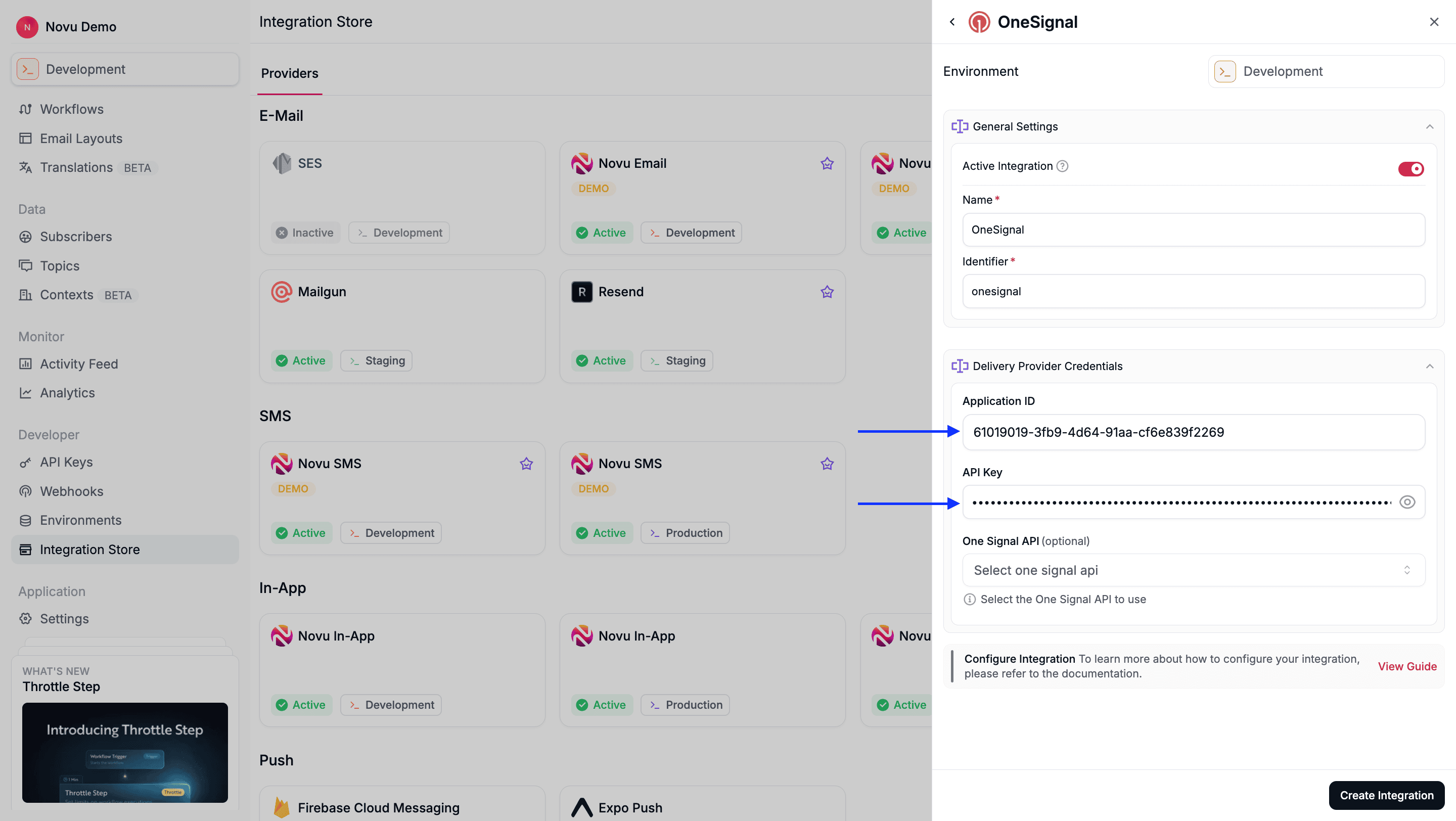
7
Create the integration
Review your credentials, then click Create Integration to save.
Using Onesignal with Novu
Once your integration is configured, you can start sending push notifications by registering your subscribers’player_id tokens and triggering a workflow.
Step 1: Add subscriber device token
When you set up the OneSignal SDK in your application, your users are automatically assigned a unique OneSignalplayer_id. This ID is used to target the user for push notifications.
To target a OneSignal user from Novu, you must register their player_id as the deviceToken for their Novu subscriber profile.
You can do this by making an API call to update the subscriber’s credentials.
- Node.js
- Python
- Go
- PHP
- .NET
- Java
- cURL
Step 2: Send a notification
- Node.js
- Python
- Go
- PHP
- .NET
- Java
- cURL
Using overrides to customize notifications
To customize a single notification, send OneSignal fields underoverrides.providers['one-signal'] when you trigger the workflow. Novu deep-merges that object into the Create notification request body it builds from the Push step’s Subject and Body, so the fields you send win over the generated ones.
The override is an unvalidated passthrough, so copy field names from OneSignal’s API reference. Novu snake-cases the keys before sending, so androidChannelId also arrives as android_channel_id.
Novu only reads provider fields under
overrides.providers. Keys at the root of overrides are ignored. channelId, categoryId, icon, and sound are not OneSignal fields, so they do nothing under providers either — use android_channel_id, ios_category, large_icon, and ios_sound / android_sound instead, and send subtitle as a language map such as { "en": "Order #12345" }.- Node.js
- Python
- Go
- PHP
- .NET
- Java
- cURL
Using external user ID
By default, Novu usesplayer_id to send notifications, but you can select the External ID option in the OneSignal integration settings in Novu. If External ID option is selected, then deviceTokens stored in subscriber credentials for the OneSignal provider, are used as external user IDs.
By default, Novu uses player IDs to send notifications. If your OneSignal integration uses external user IDs, then you can switch this behavior in the OneSignal integration settings in Novu.
Once enabled, the deviceTokens stored in subscriber credentials are treated as external user IDs instead of player IDs.