

Configure Push Webhook with Novu
To configure Push Webhook, you must provide an endpoint URL for Novu to call and a secret HMAC key to verify the request’s authenticity.Step 1: Get your webhook URL and secret key
Before connecting to Novu, you need two things:- Webhook URL: This is your own API endpoint that will receive the
POSTrequest from Novu. For quick testing, you can use a service like webhook.site. - Secret HMAC Key: This is a self-generated secret string. Novu will use it to encrypt the payload using the
HMAC SHA256algorithm and send the hash in thex-novu-signatureheader. This lets you verify that the request is genuinely from Novu. See how to generate a HMAC key.
Your webhook URL endpoint must be able to accept
POST requests.Step 2: Connect Push Webhook to Novu
Next, add these keys to your Push Webhook integration in the Novu dashboard:1
Log in to the Novu dashboard
Open the Novu Dashboard.
2
Open Integration Store
On the Novu dashboard, navigate to the Integration Store.
3
Connect a provider
In the Integration Store, click Connect provider to begin setup.
4
Select Push Webhook
In the Push tab, choose Push Webhook from the provider list.
5
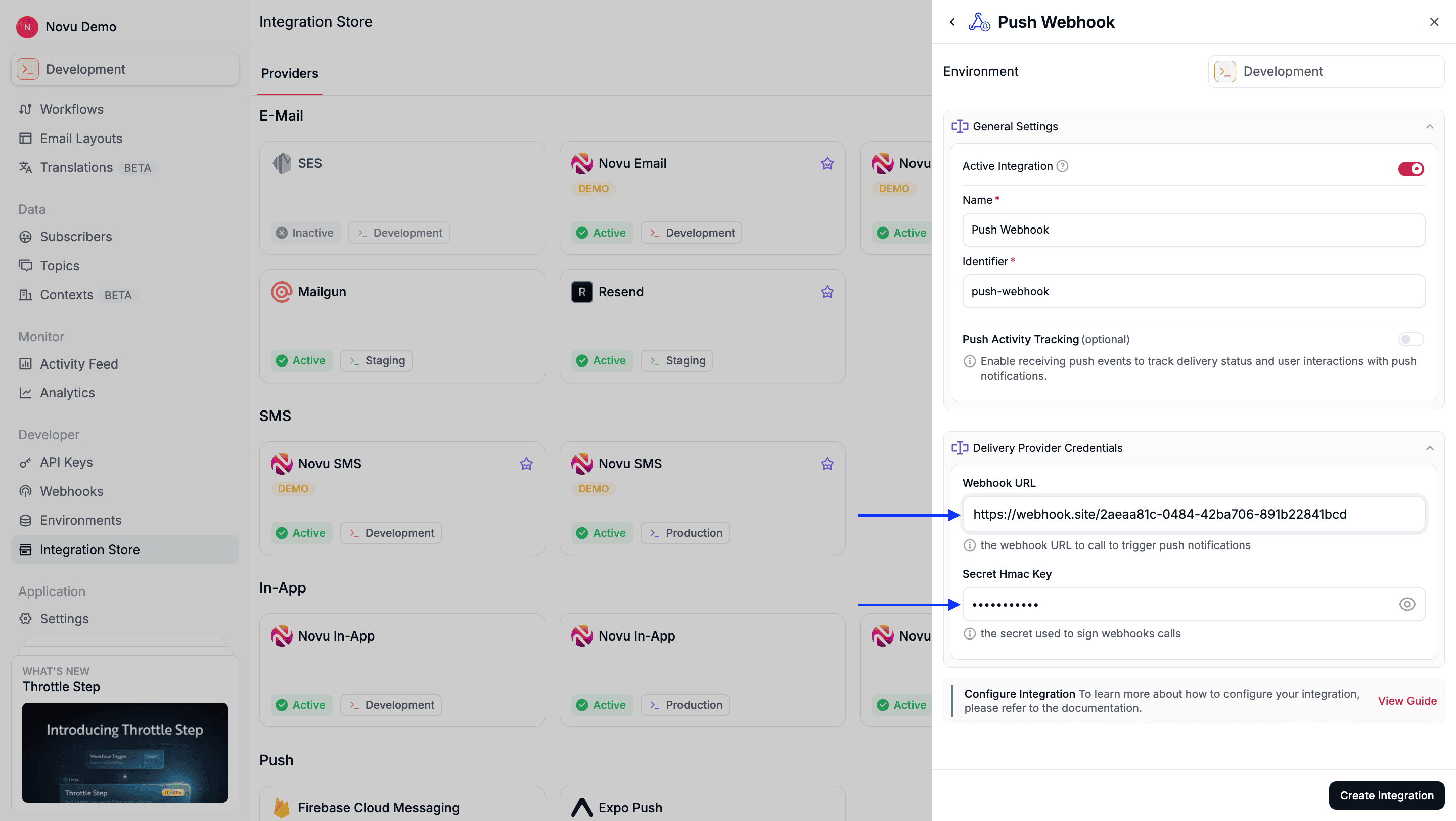
Fill in integration fields
- Webhook URL: The endpoint URL that you prepared in Step 1.
- Secret HMAC Key: The secret key used to sign webhook calls.
6
Create the integration
Review your credentials, then click Create Integration to save.
Using Push Webhook with Novu
Once configured, you must register a device token for your subscriber and trigger a workflow.Step 1: Add subscriber device token
This step is mandatory. Unlike other push providers that generate a unique token, for the Push Webhook, you must provide your own identifier. Any random string can be used as a device token. This token is included in the webhook payload sent to your endpoint, allowing you to identify which user or device the notification is for.- Node.js
- Python
- Go
- PHP
- .NET
- Java
- cURL
Step 2: Send a notification
Now you’re ready to send a push notification. Create a workflow with a Push step and trigger it. Novu sends the notification payload to the webhook URL that you configured. The example below demonstrates a simple trigger using Novu’s SDK.- Node.js
- Python
- Go
- PHP
- .NET
- Java
- cURL
Payload sent by Novu to webhook URL
When you trigger a workflow, Novu sends aPOST request to your webhook URL with a JSON body similar to the one below.
The payload includes:
- The
titleandcontentfrom your workflow editor. - The
target(the device token you set). - Your
overrides. - The full payload from your trigger.
- The subscriber’s profile.
Checking authenticity
If you provided a secret HMAC key during configuration, then Novu will include ax-novu-signature header in the request. You can use this header to verify that the request is from Novu and not a malicious third party.
Here is an example of how to validate the hash: