

- The required setup in your Apple Developer account.
- The connection process in Novu.
- How to manage device tokens and message payloads.
Configuring APNS with Novu
Before sending notifications, APNS must be configured with the correct credentials from your Apple Developer account. Novu uses these credentials to securely authenticate with Apple’s servers.Obtain APNS credentials
Apple provides two authentication options for connecting to APNS:- A certificate-based
.p12certificate - A token-based
.p8key
.p8 token-based approach, which is recommended for most production setups.
To generate the required credentials, use an Apple Developer account with an Admin role. Follow Apple’s official steps to create and download a private .p8 key.
The following identifiers are also needed for integration:
- Key ID: A unique 10-character identifier for the authentication key.
- Team ID: This is found in your Apple Developer account.
- Bundle ID: The identifier for your app, which is available in the app info section.
Add APNS credentials to Novu
Once the Apple credentials are available, you can add them in Novu’s Integration Store.- Log in to your Novu account.
- On your dashboard, click Integration Store.
- Click Connect provider.
- Click the Push tab.
- Select APNS.
- In the APNS integration form, fill in the Name and Identifier fields.
- In the Delivery Provider Credentials section, fill in the following fields:
- Private Key: The content of your
.p8file. - Key ID: Your 10-character Key ID.
- Team ID: Your 10-character Team ID.
- Bundle ID: Your app’s Bundle ID.
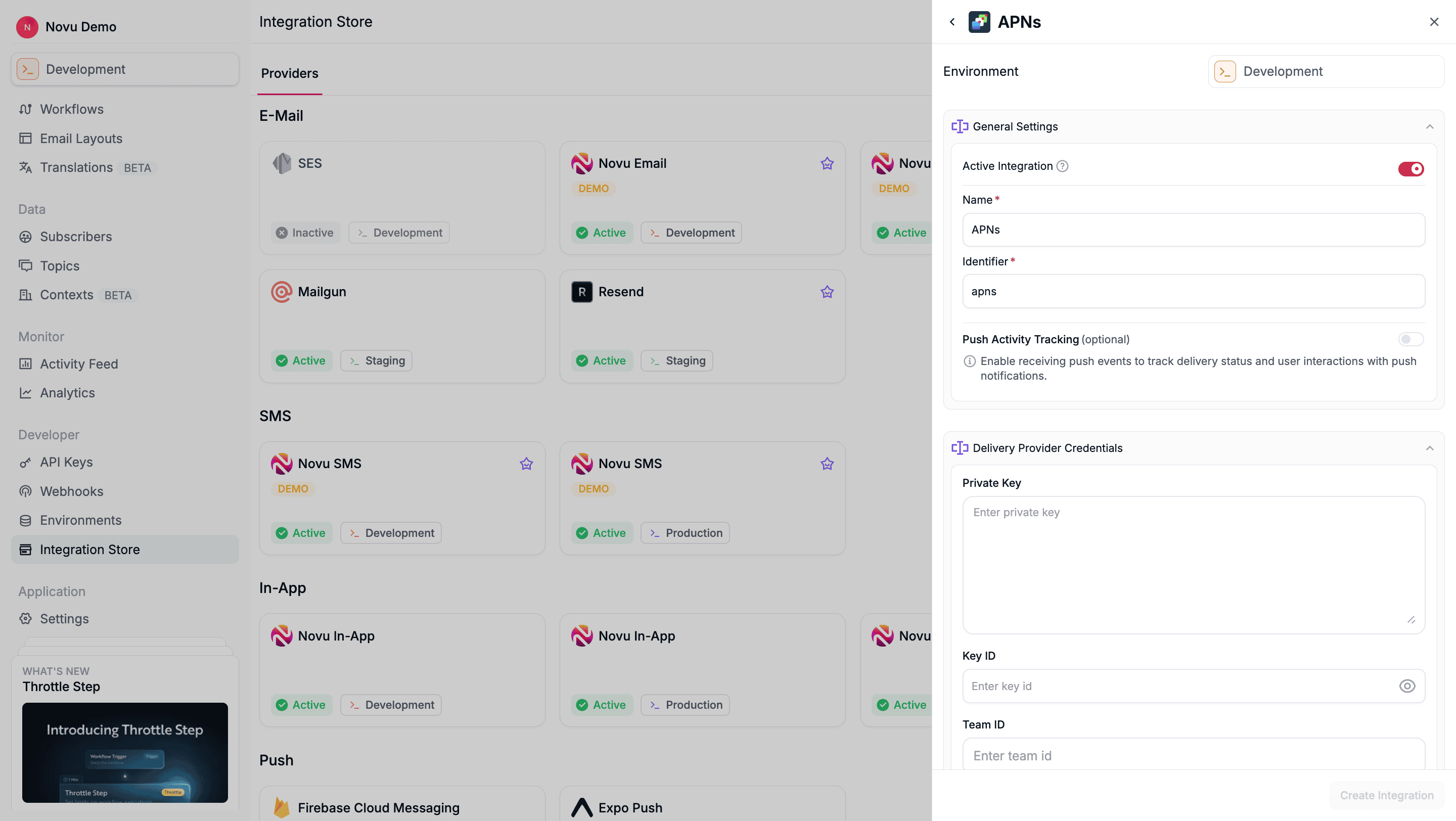
- Private Key: The content of your
- Click Create Integration.
Sending notifications with APNS
After configuration, APNS can be used in any Novu workflow that includes a Push step. The process involves registering device tokens for subscribers and then triggering workflows to deliver messages.Registering subscriber device tokens
Each subscriber (user) must have one or more device tokens registered to receive push notifications. Tokens can be added or updated through Novu’s API using the Update Subscriber Credentials endpoint.- Node.js
- Python
- Go
- PHP
- .NET
- Java
- cURL
Triggering workflows
Once subscribers’ devices are registered, push notifications are delivered through workflows that include a Push step. A workflow can be triggered using the Novu SDK or API.- Node.js
- Python
- Go
- PHP
- .NET
- Java
- cURL
Push step content
The Push step in the workflow editor has two content fields. Each one can hold static text or dynamic values using{{subscriber.*}} and {{payload.*}} variables, which Novu resolves at send time.
For example, a step with the subject
New comment from {{payload.authorName}} and the body {{payload.commentText}} is delivered to the device like this:
The Subject and Body you set in the step are the default title and body. You can replace them for a specific trigger by sending
title or body under overrides.providers.apns, described below.Customizing notifications with overrides
Novu’s APNS integration is built on the@parse/node-apn library. When you pass overrides under providers.apns at trigger time, Novu forwards those fields to the library, which builds the notification payload (the aps dictionary) and sets the matching APNS request headers, such as apns-priority and apns-topic, for you.
You do not need to hand-build the aps dictionary or set raw headers yourself. Use the field names below and Novu maps them to the correct APNS payload keys and headers.
Anything you send in the trigger
payload is delivered alongside the aps dictionary as the notification’s custom data, so you usually do not need to override the payload to pass app-specific values. If you set rawPayload, that object becomes the entire body instead.apns-priority and apns-topic headers. The topic field is optional since it defaults to your integration Bundle ID:
- Node.js
- Python
- Go
- PHP
- .NET
- Java
- cURL
Sending custom data
Novu builds theaps dictionary for you from the fields in the table above. Any keys you send in the trigger payload are delivered at the root of the notification, next to aps, as your app’s custom data. You do not need a separate data field.
For example, triggering the workflow with this payload:
Because Novu generates the
aps dictionary from the fields in the table above, an aps object nested inside a payload override is not applied. Use the fields above to shape aps, and the trigger payload to pass custom data.VoIP pushes for CallKit and PushKit
iOS incoming-call flows (CallKit / PushKit) need a true VoIP push. Apple requires:apns-push-type: voipapns-topicset to your app’s VoIP topic (<bundle-id>.voip)- A PushKit VoIP device token (not the regular remote-notification token)
pushType, topic, rawPayload). Unlike email or SMS, a Push step does not let you pin the send to one integration with integrationIdentifier. It delivers through every active push integration that has device tokens for that subscriber, and overrides.providers.apns is applied to each APNS integration the same way.
Because of that, use a dedicated VoIP APNS integration and keep token types on the matching integration:
- Create an APNS integration used only for VoIP (for example identifier
apns-voip). Reuse the same.p8key, Key ID, and Team ID if you already have an alert integration. Set Bundle ID to your VoIP topic (com.example.app.voip), or keep the app Bundle ID and overridetopicat trigger time. - Register the PushKit VoIP token on that integration with
integrationIdentifier. Store regular remote-notification tokens only on your alert APNS integration, not on the VoIP one. - Trigger a workflow that includes a Push step, and set
pushType,topic, andrawPayloadunderoverrides.providers.apns.
integrationIdentifier override to send through only one integration.
Store the VoIP token on the VoIP integration:
- Node.js
- Python
- Go
- PHP
- .NET
- Java
- cURL
rawPayload is the CallKit payload your app expects. When it is set, Novu sends that object as the full notification body (no generated aps.alert from the Push step Subject / Body):
- Node.js
- Python
- Go
- PHP
- .NET
- Java
- cURL
Passing raw APNS HTTP headers under
_passthrough.headers (for example apns-push-type) is not supported for the native APNS provider. Use pushType, topic, and priority instead. Those map to the correct headers through @parse/node-apn.