

- SMS: Body field only
- Chat: Block editor for rich cards, or a text editor for plain text / Liquid
- Push, email, and in-app: Subject and body fields
Variables autocomplete is supported in all channel template editors
In-app template editor
The in-app template editor defines how notifications appear inside your application through the Novu<Inbox />. In-app notifications are UI-driven, not just message-driven. This means that the template is responsible for both content and interaction.
To learn how in-app notifications are rendered and displayed in your application, see the
<Inbox /> documentation.Disable content sanitization
By default, Novu sanitizes both the subject and body fields to prevent unsafe HTML from being rendered. This includes sanitizing:- Suspicious HTML tags.
-
HTML entities. The five HTML-reserved characters are escaped to their entity form when rendered:
If your payload contains any of these characters in a value that must render literally (for example a filename like
Report & Summary.pdf), the sanitized output will show the entity form in email and SMS content. To avoid this without disabling sanitization, pass a display-safe value from your application code before triggering the workflow (for example, replace&withand, or use a separate display field such asReport and Summary.pdf).
- You fully trust the trigger payload.
- You control all dynamic data sources.
Avatar customization
You can control how the notification avatar is displayed using one of the following methods:- Provide a custom avatar URL.
- Select from the available built-in icons.
Action buttons
In-app notifications support primary and secondary actions. For each action, you can configure:- Button text
- Redirect URL
- Navigation targets (
_self,_blank,_parent,_top, and_unfencedTop)
Redirect URL
The redirect URL defines where the user is navigated when the notification itself is clicked. You can:- Define a static or dynamic URL.
- Control navigation behavior using targets.
- Omit the redirect URL and handle clicks using the
onNotificationClickhandler in the<Inbox />component.
For security, Novu only keeps redirect URLs that are an absolute
http/https URL, a root-relative path that starts with / (for example, /tasks/123), or a URL built from Liquid variables (for example, {{payload.url}}). Other values - such as javascript:, mailto:, protocol-relative //host URLs, or custom app deep-link schemes (myapp://...) - are removed, and the notification renders without a redirect. This applies to both the main redirect URL and action button URLs.Data object
The data object is a customizable key-value store available in the in-app step. You can use it to extend each Inbox component notification by embedding custom data.To learn more about how to use the data object to customize how messages appear in the
<Inbox />, refer to the Data Object documentation.Chat template editor
The Chat template editor supports a block editor (structured cards) and a text editor (plain text / Liquid). Existing text steps stay on the text editor, and new empty steps default to the block editor. For supported blocks, preview, backward compatibility, and how this relates to provider overrides, see Writing chat templates.Email template editor
The email template editor defines how email notifications are structured, rendered, and delivered. Novu dashboard provides multiple authoring modes:You can submit custom HTML email templates via the Novu API. This method supports workflows where you render templates externally and use Novu purely for delivery.
Block editor
The block editor is aWYSIWYG editor that allows you to create and edit email templates. It has two fields: subject and body.
A block can be added by clicking on the plus (+) icon in the top-left corner of body field or by adding a forward slash (/). In both cases, a menu appears with the list of supported blocks:
Supported Content Blocks
Supported Content Blocks
- Blockquote
- Bullet List
- Button
- Cards
- Columns
- Custom HTML code
- Divider
- Footers
- Hard Break
- Headers
- Heading 1
- Heading 2
- Heading 3
- Image
- Inline Image
- Numbered List
- Repeat
- Section
- Spacer
- Text
Once you switch from block editor to code editor, you can’t go back to the block editor unless you reset the template.
Custom HTML block
The custom HTML block allows you to insert raw HTML inside a block editor layout.- Allows injecting variables using
{{ ... }} - Supports LiquidJS control structures like
{% for %}or{% if %}
Repeat block
The repeat block lets you iterate over an array and render its child blocks for each item in that array. It works similarly to a JavaScriptfor loop and is used for displaying structured or repeated data such as order items, activity feeds, or grouped records.
When the workflow runs, Novu evaluates the array you provide and repeats the block’s content for every element, allowing you to build dynamic lists.
In the video above, the repeat block iterates over the following array:
{{payload.order.items}}is the array containing the items in an order.
{{payload.order.items.name}}{{payload.order.items.price}}
Show block conditionally
The show block conditionally feature lets you control whether a content block is rendered based on runtime data. It allows you to show or hide specific parts of a template using conditions evaluated against subscriber properties or payload variables when the workflow runs. This is useful for keeping templates flexible and avoiding duplicated layouts, for example, showing a call-to-action only when it’s relevant to the recipient. The feature is supported by the following blocks:- Button block
- Custom HTML block
- Image block
- Repeat block
showTracking set to true. You can apply the same logic using payload variables passed when triggering the workflow, allowing content to adapt dynamically to each notification.
Digest block
The Digest block allows you to loop over the events collected by your digest step and displays them in your email content. It handles both layout and repetition automatically. The Digest block is only available in Email steps that come after a Digest step in the workflow. When you add a digest block to your email template editor:- Novu automatically inserts a Repeat block that iterates over the digested events.
- You can define how many times the event is iterated.
- Inside the loop, you can also use the special alias variable
currentto reference the item currently being processed, for example,current.payload.name. - The block also supports rendering a summary using the
steps.digest-step.eventCountvariable, typically with the pluralize LiquidJS filter.
To learn more about using digested data and digest-related variables in templates, see the Personalize Content documentation.
Code editor (Custom HTML)
The code editor provides a built-in interface for writing raw HTML and embedding LiquidJS expressions directly inside the Novu dashboard. This gives you full control over layout, structure, and rendering beyond the capabilities of Novu’s block editor. The editor supports advanced use cases such as:- Migrating existing HTML email templates
- Implementing full design systems
- Executing flow control logic directly inside email templates
- Complete layout and styling freedom without editor constraints
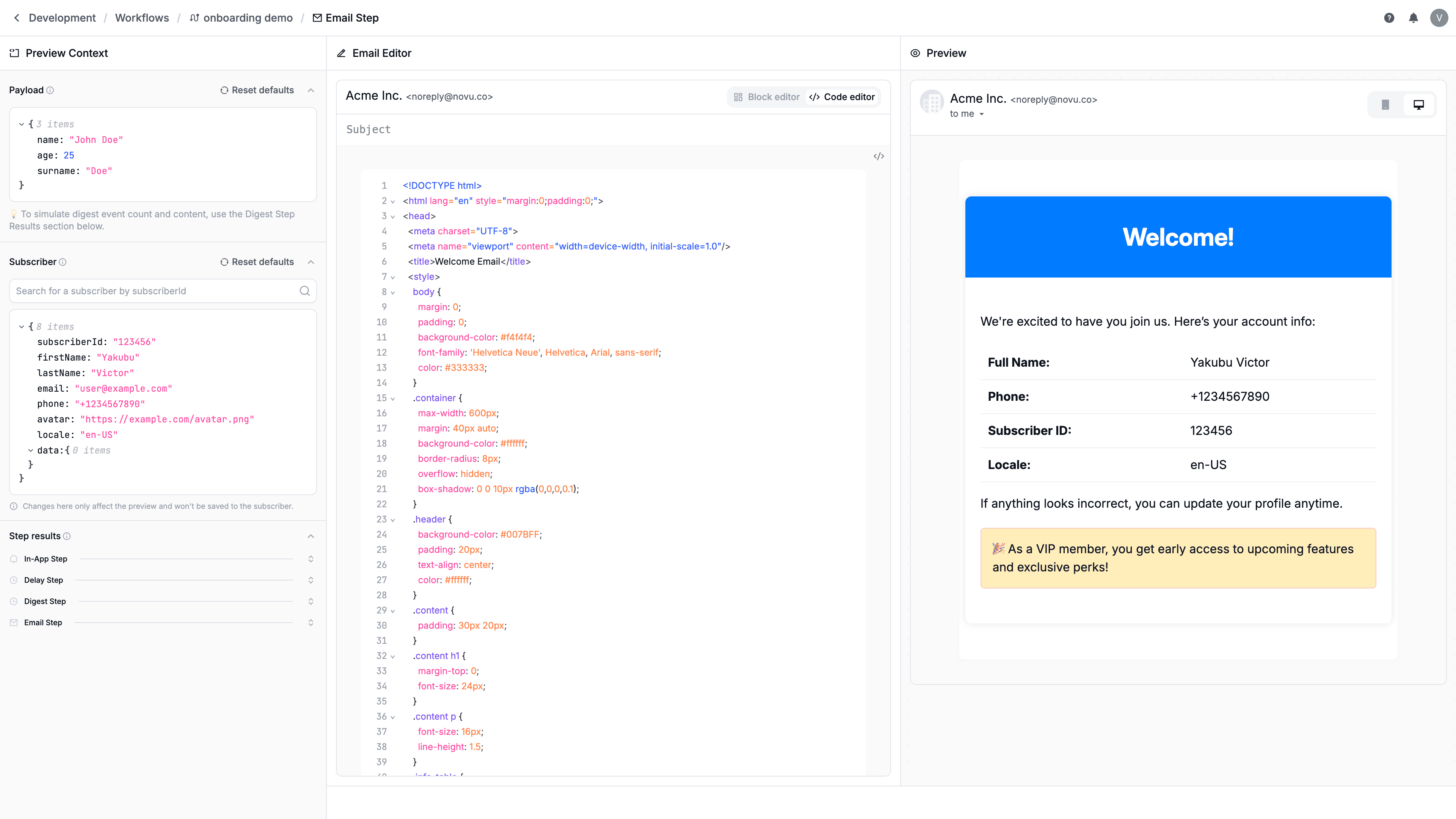
Email layouts
Layouts are reusable components used with email steps in the workflow, designed to bring consistency, maintainability, and efficiency to your email communications. With layouts, you can create a component using headers, footers and other branding elements and reuse that component across multiple email steps. Every layout must include the{{content}} variable. This variable dynamically injects the content of the email step.
On the Free plan, only one layout can be created per environment. Pro and higher plans support up to 100 layouts per environment. If you need more than 100 layouts, please contact Support.
Layout features
- Reusable across workflows.
- Support both block and code editors.
- Each environment maintains its own set of layouts.
- Supports subscriber variables, such as
{{subscriber.firstName}}, and translation keys after translations are enabled on the layout.
Payload variables are not supported in layouts because one layout can be used across multiple workflows and workflows can have strict payload schema validation. Put payload fields in the email step body, which is injected at
{{content}}.Apply an email layout to a workflow
- Navigate to Workflows page on Novu dashboard.
- Select a workflow from the list.
- Select an email step.
- Choose your layout from the Layout selector.
Manage email layouts
Email layouts are managed from the Layouts section of the Novu dashboard. From here, you can create, edit, delete, and reuse layouts across workflows. Create an email layout- Navigate to the Layout page on Novu dashboard.
- Click on the Create layout button on the top right corner.
- Fill in:
- Layout name: Provide a human-readable name.
- Identifier: Provide a unique ID. Novu generates one automatically if you do not provide it. You cannot change the identifier after it is created.
- (Optional) Enable translations for the layout.
- Click Create layout.
- Navigate to Layout page on Novu dashboard.
- Select a layout from the list.
- To update the layout name or enable translations, click the cog icon in the editor.
- Modify the layout content using the block or code editor.
- Click Save changes.
- Navigate to Layout page on Novu dashboard.
- Select a layout from the list.
- Click the cog icon in the layout editor.
- Click Delete layout and confirm. If the layout is used by an email step, then you are notified on which step uses this layout.