

tenant, app, region, or any key that matches your product model. Each context entry is either a simple identifier or a rich object with an id and optional data fields.
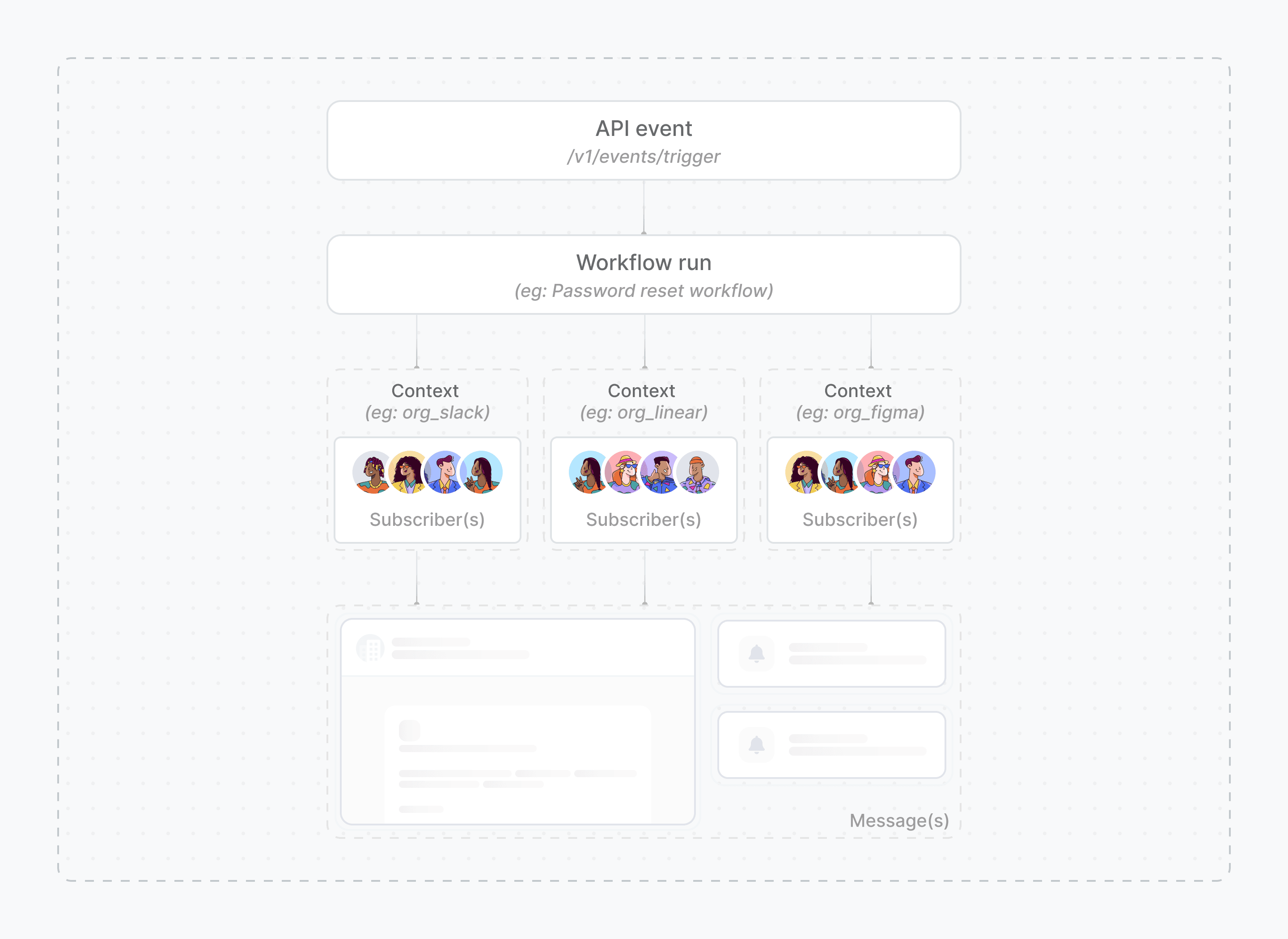
How contexts fit into Novu’s model
When you trigger a workflow, you pass:- A subscriber (who receives the notification)
- A payload (event-specific data for this run)
- An optional context (shared metadata that scopes and personalizes the notification)
You can pass up to five context keys per trigger. Each context
data object is limited to 64KB. See Manage contexts for schema details.Context vs payload
Use the payload for data that changes on every event. Use context for metadata that defines where or for whom a notification belongs.
Context structure
Each key in thecontext object is a context type. Novu supports three formats per key:
data is upserted when you include a data object inline - similar to subscriber fields. Passing only a string identifier (for example, tenant: "acme-corp") references the context without changing stored data.
Inbox and other subscriber-facing APIs only find or create contexts and do not update existing data. You can also manage context data through the Contexts API or the Novu dashboard.
What you can use contexts for
Multi-tenancy
Isolate notifications per organization, workspace, or customer using a
tenant context, without prefixing subscriber IDs or duplicating workflows.App or feature scoping
Route notifications to the right Inbox by scoping with an
app or feature key when one subscriber uses multiple products.Dynamic branding
Store logos, colors, and plan names in context
data and reference them in templates with {{context}}.Conditional workflow logic
Branch workflow steps based on context values, such as sending enterprise-only emails when
context.tenant.data.plan is enterprise.Provider routing
Select a tenant-specific email, SMS, chat, or push integration with conditions on
context.tenant.id.Topic subscriptions
Scope topic subscriptions per tenant or app, match them to workflow triggers using the same Context keys, and filter delivery with payload-based JSON Logic conditions.
How context scoping works
In workflows and templates
Context data is available in every template editor through the{{context}} helper. The same paths work in step conditions.
In the Inbox
The Inbox uses exact-match filtering. Thecontext prop on <Inbox /> must match the context used at trigger time, key for key and value for value. Notifications triggered with a tenant context only appear in an Inbox initialized with the same tenant context.
When a subscriber switches tenants in your app, re-render the Inbox with the new context. Novu refetches notifications and reconnects the WebSocket scope automatically.
Trigger a workflow with context
- Node.js
- Python
- Go
- PHP
- .NET
- Java
- cURL
Next steps
Multi-tenancy
Implement tenant isolation with contexts end to end.
Manage contexts
Create, update, and delete contexts through the API or dashboard.
Contexts in workflows
Personalize templates and add conditional logic with context data.
Inbox with context
Filter the Inbox by context and secure it with
contextHash.Frequently asked questions
Should I create and update contexts ahead of time or pass context data on every trigger?
Should I create and update contexts ahead of time or pass context data on every trigger?
Both patterns are supported.Inline on workflow trigger (server-side): When you trigger a workflow with a rich context object that includes
data, Novu creates the context if it is missing or replaces stored data if it already exists. This works like subscriber upsert and is useful when your backend already has the latest tenant metadata at trigger time. Pass only the context id as a string when you want to reference existing data without changing it.Ahead of time via API or dashboard: Create contexts with initial data before you need them, then update context data when metadata changes (for example, tenant name or plan). Use this when you want a single source of truth outside of triggers.Inbox: Session initialization can auto-create missing contexts but never updates existing context data. Do not rely on the Inbox to refresh tenant metadata.Recommended approach for multi-tenant apps:- Create the context with initial
databefore you need it, or passdataon your first server-side trigger. - Keep metadata current through workflow triggers with inline
data, the Contexts API, or the dashboard. - Pass only context keys and
idvalues to the Inbox unless you are creating a context for the first time.
Why are notifications sent but not showing in the Inbox after I added context?
Why are notifications sent but not showing in the Inbox after I added context?
Inbox notifications are scoped per context. If you trigger a workflow with
context but initialize <Inbox /> without the same context (or vice versa), the notification will not appear in that Inbox session, even though the in-app job may report success.Pass the same context to both your workflow trigger and the Inbox context prop. See Inbox with context for the matching rules and troubleshooting steps.