

To learn when to use the Throttle step in a workflow, refer to the Throttle step overview.
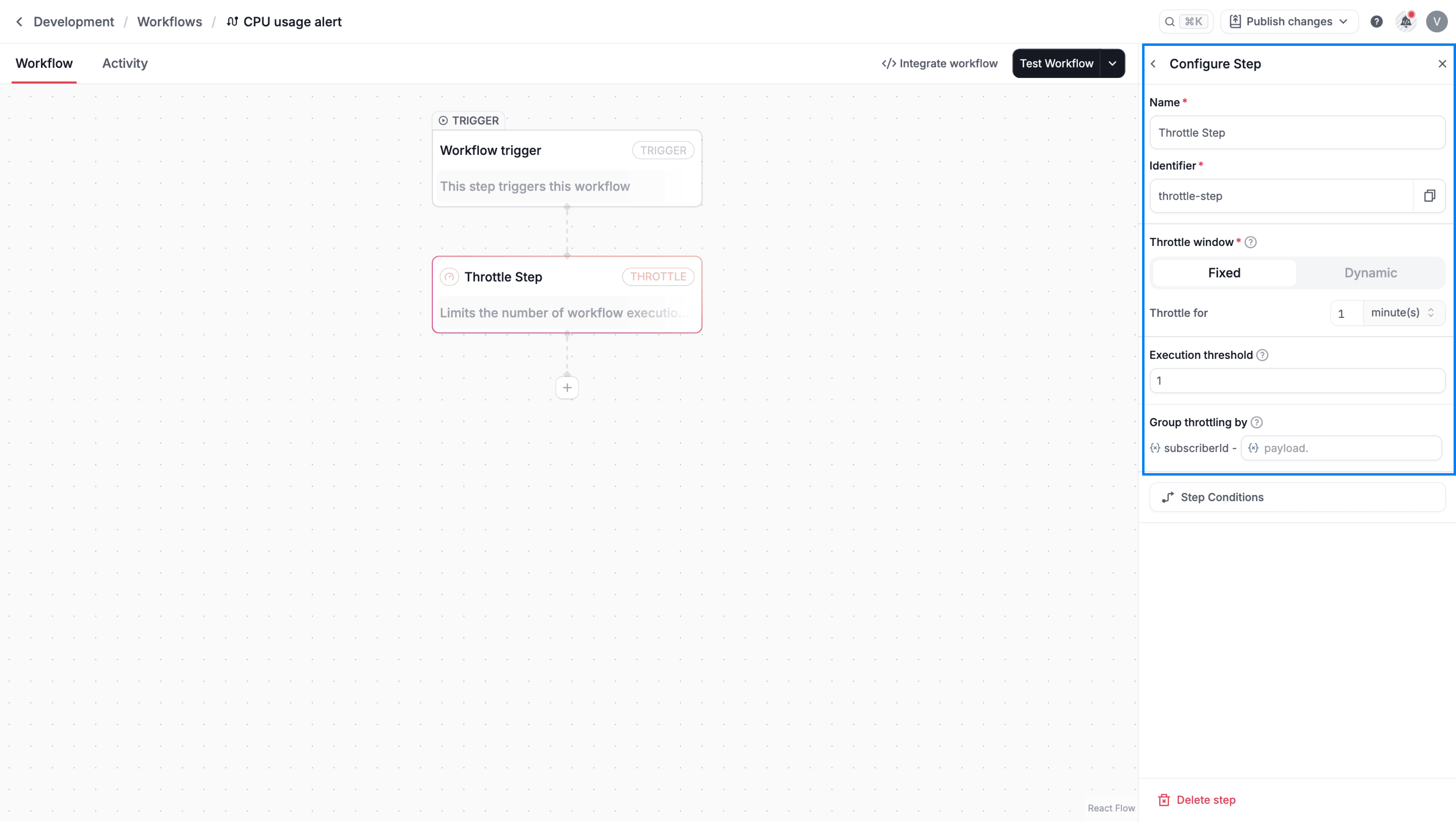
Throttle window
The Throttle window defines the time period in which executions are counted. Within this window, only the specified number of executions are allowed. In the Throttle step properties panel, you will find the options to set your Throttle Window. You can choose between the fixed or dynamic window.Fixed window
In fixed window, the time frame is predefined in the workflow editor from the Throttle for field. You can set a fixed duration of the time window. The time can be set in minutes, hours, or days. The minimum duration is one minute. You can use this mode when the time window for throttling is constant and known in advance.Dynamic window
In dynamic window, the time frame is determined by data sent in the trigger payload. In the Dynamic window key field you need to specify the key in the trigger payload that contains the dynamic window configuration. For example,payload.throttleUntil or payload.customWindow.
The value for the dynamic window key can be provided in one of two formats:
-
ISO-8601 Timestamp (string):
This format throttles executions until a specific future date and time. Any new triggers before this timestamp will be evaluated against the throttle limit.
-
Duration object: This format throttles executions for a duration relative to the time of the first trigger. It follows the same structure as the fixed window configuration.
Execution threshold
You can define the maximum number of workflow executions allowed within the specified time window in the Execution threshold field. This defaults to 1. This applies to both fixed and dynamic throttle window.Group throttling
By default, all throttling is grouped by thesubscriberId. The Group throttling by field allows you to add a second aggregation key based on a variable from your trigger payload. This is useful for creating more throttling rules.
For example, if you want to send a notification for each project a user belongs to, but no more than once a week per project. You can set Throttle for to 7 days and Group throttling by to payload.projectId. This ensures the user receives one alert for Project A and one for Project B within the same week, instead of just one alert total.